Copilot Search authoritative sites let admins mark up to 100 SharePoint sites as official. Follow 7 steps to choose, set and measure trusted sources.
TL;DR: Microsoft 365 Copilot Search now lets admins mark up to 100 SharePoint sites as authoritative, so official policies, procedures and news rank higher and carry a From your organization label. This guide covers who can set it, which sites qualify, seven setup steps and how to prove answers improved.
Copilot Search authoritative sites give IT leaders a direct way to tell Microsoft 365 Copilot which SharePoint content is official. In Message center post MC1526676 on October 26, 2026, Microsoft confirmed that Global Administrators can now manage the list in the Microsoft 365 admin center, with bulk import and export, alongside the PowerShell method SharePoint admins already had.
An authoritative site is a SharePoint site that an administrator has marked as an official, organization-managed source. Copilot Search treats its content as trusted, ranks it higher and shows a From your organization label, so employees spend less time asking whether an answer is the current version.
In 2toLead's Copilot rollouts, the most common complaint isn't that Copilot can't find the policy. It's that an outdated copy in a project site ranks as well as the real one. If you have worked through our Copilot-ready intranet governance checklist, this is the setting that rewards that work.
This guide is for Microsoft 365 and SharePoint administrators, intranet owners and the IT leaders who sponsor them. By the end you will have a scored shortlist, those sites marked as authoritative, a register with owners and review dates, and a before-and-after test of Copilot answers.
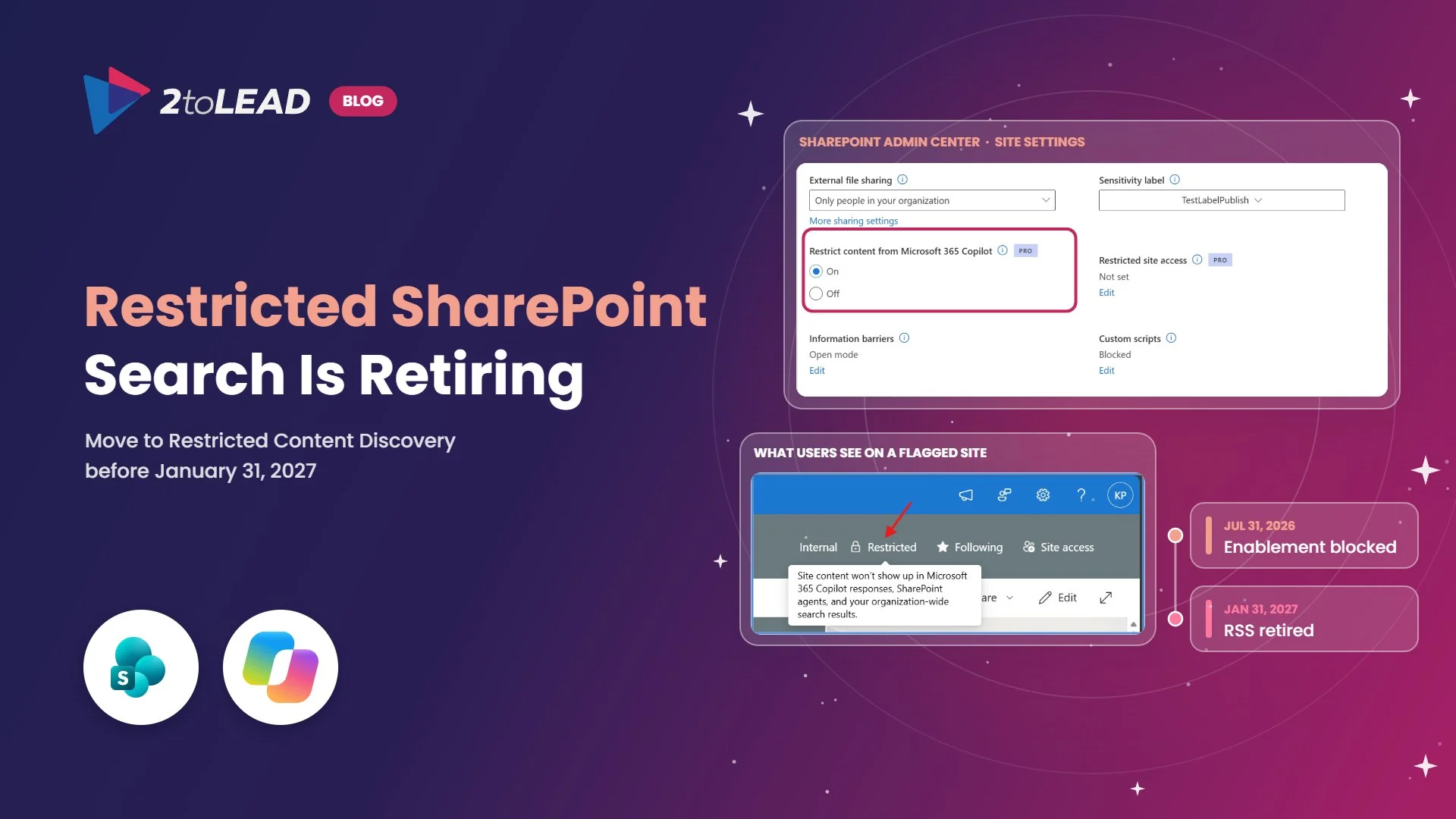
The timing matters. Restricted SharePoint Search limited what Copilot could see, while authoritative sites tell Copilot what it should trust. If you still rely on the former, read our Restricted SharePoint Search retirement plan before January 31.
You need a qualifying Microsoft 365 subscription, SharePoint Advanced Management, the right admin role and up to 72 hours of lead time before you can test.
Swipe horizontally to view each prerequisite and why it matters.
| Prerequisite | What you need | Why it matters |
|---|---|---|
| Base subscription | Office 365 E3, E5 or A5; Microsoft 365 E1, E3, E5 or A5; or Microsoft 365 GCC, GCC High or DoD. | Authoritative sites follow the SharePoint Advanced Management prerequisites. |
| SharePoint Advanced Management | At least one user with a Microsoft 365 Copilot license, the SharePoint Advanced Management Plan 1 add-on, or Microsoft 365 E7. | Microsoft lists a missing Copilot license as the first thing to check when changes don't appear. |
| Admin center role | Global Administrator to add or remove sites. Global Reader can view the list. | MC1526676 limits the Authoritative content page to these two roles. |
| PowerShell role | SharePoint Administrator and the latest SharePoint Online Management Shell. | Set-SPOSite with -IsAuthoritative is the scripted path for SharePoint admins. |
| Eligible sites | Up to 100 SharePoint sites, managed per geo in multi-geo tenants. Personal sites aren't eligible. | Designation is site-level only, so official content must live in a SharePoint site. |
| Lead time | Up to 72 hours for changes to reach Copilot Search. | Schedule your retest for later in the week, not the same afternoon. |
If you are reviewing Copilot licenses this quarter, our Microsoft 365 Copilot licensing changes guide for December 2026 covers what to check first.
A site is ready when it has a named owner, holds the single official version of its content, has clean permissions and has a review date. Score each candidate against the six checks below, and promote only sites that pass at least five, including the first two.
Swipe horizontally to view each check, what a pass looks like and the red flag.
| Check | Pass looks like | Red flag |
|---|---|---|
| 1. Named owner | A business owner and a backup, listed on the site and in your register. | The owner has left, or the owner is simply "IT". |
| 2. Single source of truth | The official version of HR policies, the IT service catalog, clinical procedures or program guidelines. | Copies of the same policy live in team or project sites. |
| 3. Freshness | Key pages reviewed in the last 12 months, with a next review date. | Core pages untouched for years. |
| 4. Permissions | Access matches the intended audience. | Confidential libraries open to everyone in the organization. |
| 5. Labels and retention | Sensitivity labels and retention policies applied where your rules require them. | Regulated content with no label. |
| 6. Findable structure | Clear page titles, metadata and navigation. | Answers buried in attachments named final_v7. |
Start small. In our experience, 10 to 25 sites cover most of what employees ask Copilot about, and a short list is easier to keep accurate. Hospitals often start with clinical policy and infection control sites, nonprofits with program and grant guidelines, school districts with student services, and government agencies with public-facing policy hubs. If official answers are scattered across many sites, read about the new role of the knowledge base in SharePoint before you promote anything.
You set authoritative sites in seven steps: score, clean up, baseline, confirm access, mark the sites, record them and retest after 72 hours. Each step below has one action and the result you should see.
Connect-SPOService and then Set-SPOSite -Identity <site URL> -IsAuthoritative $true for each site. Expected result: Your sites appear in the Authoritative content list, up to the 100-site limit.Get-SPOSite -Filter { IsAuthoritative -eq true }, and save the result with each site's owner and next review date. Expected result: One auditable record of what Copilot treats as official.Most problems come from promoting too much too soon, testing too early or using the wrong role.
Check three things: the list is correct, the label appears, and answers come from the right place. Export the list or run the Get-SPOSite filter and compare it with your register. Then sign in as test users from two or three departments, search for your baseline questions in Copilot Search and confirm that results from your sites show the From your organization label.
Because Copilot respects permissions, test with accounts that have different access, not only an admin account. If nothing changes after 72 hours, confirm the Copilot license, that the feature is enabled in your tenant and that each URL points to a supported SharePoint site. It's a practical reminder of why Copilot is only as smart as SharePoint.
Copilot answer accuracy is easiest to measure as the share of baseline questions answered from an official source. Then turn the time saved into hours and dollars. Run the same question set before setup, 72 hours after and every quarter.
Here is an illustrative worked example; replace the figures with your own. An organization of 2,000 employees has 1,000 people who look up a policy or procedure twice a week. If authoritative sites save three minutes per lookup by removing the "is this the current version?" check, that is 6,000 minutes, or 100 hours, a week. Over 46 working weeks that is 4,600 hours, or about $230,000 at a $50 loaded hourly cost. Setting up 20 sites typically takes three to five days of admin and site owner time, so even a fraction of that saving covers the effort. Pair the result with the Copilot adoption metrics that prove value so finance sees one consistent story.
Copilot doesn't need more content. It needs to know which content is official.
You can mark up to 100 SharePoint sites as authoritative. Multi-geo tenants manage authoritative site data per geo, designation is site-level only, and personal OneDrive sites can't be marked.
No. Authoritative status changes how Copilot Search ranks and labels content, not who can open it. Copilot still respects SharePoint permissions, so people only see results they already have access to.
No. The Manage Authoritative Pages setting under More features and Search in the SharePoint admin center tunes classic search ranking. Copilot Search authoritative sites are managed on the Authoritative content page in the Microsoft 365 admin center or with Set-SPOSite.
You need a qualifying base subscription, such as Microsoft 365 E3 or E5, plus SharePoint Advanced Management. You get SharePoint Advanced Management when at least one user has a Microsoft 365 Copilot license, through the Plan 1 add-on, or with Microsoft 365 E7.
2toLead helps organizations in healthcare, professional services, education, nonprofit and government make Copilot answers trustworthy and measurable. In a fixed-scope, two-week Copilot Trusted Sources Sprint, our Microsoft MVP team will:
For full configuration details, read Microsoft's guide to SharePoint authoritative sites in Copilot Search.
For more of what changed this month, our October 2026 Copilot Adoption Newsletter is a good next read.
Find more practical guidance on the 2toLead Insights hub, or book a Copilot Trusted Sources Sprint.
No hype. Just practical, governed AI that actually gets adopted.
A sprawling intranet where nobody finds anything? Three ways we help:
Atrium Hospitality moved 7,000+ employees into one SharePoint intranet, with 40% faster document search.
Read the case study →Copilot licences bought, usage flat, ROI unproven? Three ways we help:
A global nonprofit turned Copilot licences into 1,115.6 hours saved and $83.7K in productivity value.
Read the case study →


Join Our Newsletter