What if the next improvement to your intranet wasn’t another document, but a better way to experience the information inside it?
That’s the question we think is worth asking about HTML pages in SharePoint. Microsoft now supports creating them with Copilot or uploading existing HTML, then editing, publishing and sharing them alongside modern pages in the Site Pages library. Availability is being introduced gradually, so your organisation’s experience may differ.
The interesting part isn’t the file format. It’s the opportunity to rethink how we help employees understand something, find their next step or make sense of information.
We don’t need to make every page more elaborate. But we should be curious about where a different presentation could make a meaningful difference.
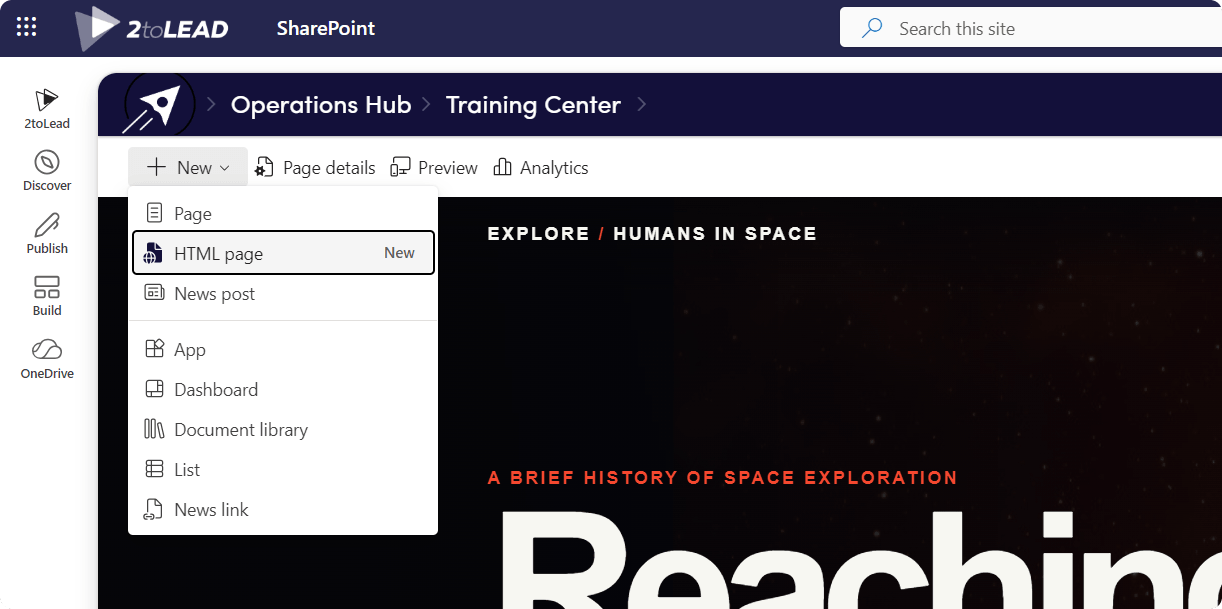
We suggest approaching HTML pages with a simple question: where are we asking people to work too hard to understand something? This connects to a broader question we explore in our article on the intelligent intranet: are we simply publishing information, or helping employees understand it and act on it?
Consider a project update. Rather than asking colleagues to piece together a presentation, a spreadsheet and meeting notes, imagine a focused page presenting the roadmap, key milestones and frequently asked questions. Microsoft explicitly includes project status pages, roadmaps and team timelines among its suggested scenarios.
Our recommendation would be to start with one project and one audience. What does someone need to understand in two minutes? What deserves attention? What can remain a link to supporting detail?
That shift matters. Instead of starting with “What can we build?”, we start with “What would help?”
A visually impressive page that leaves people confused hasn’t solved the problem. A straightforward page that helps someone understand the situation and take the next step might be exactly what’s needed.
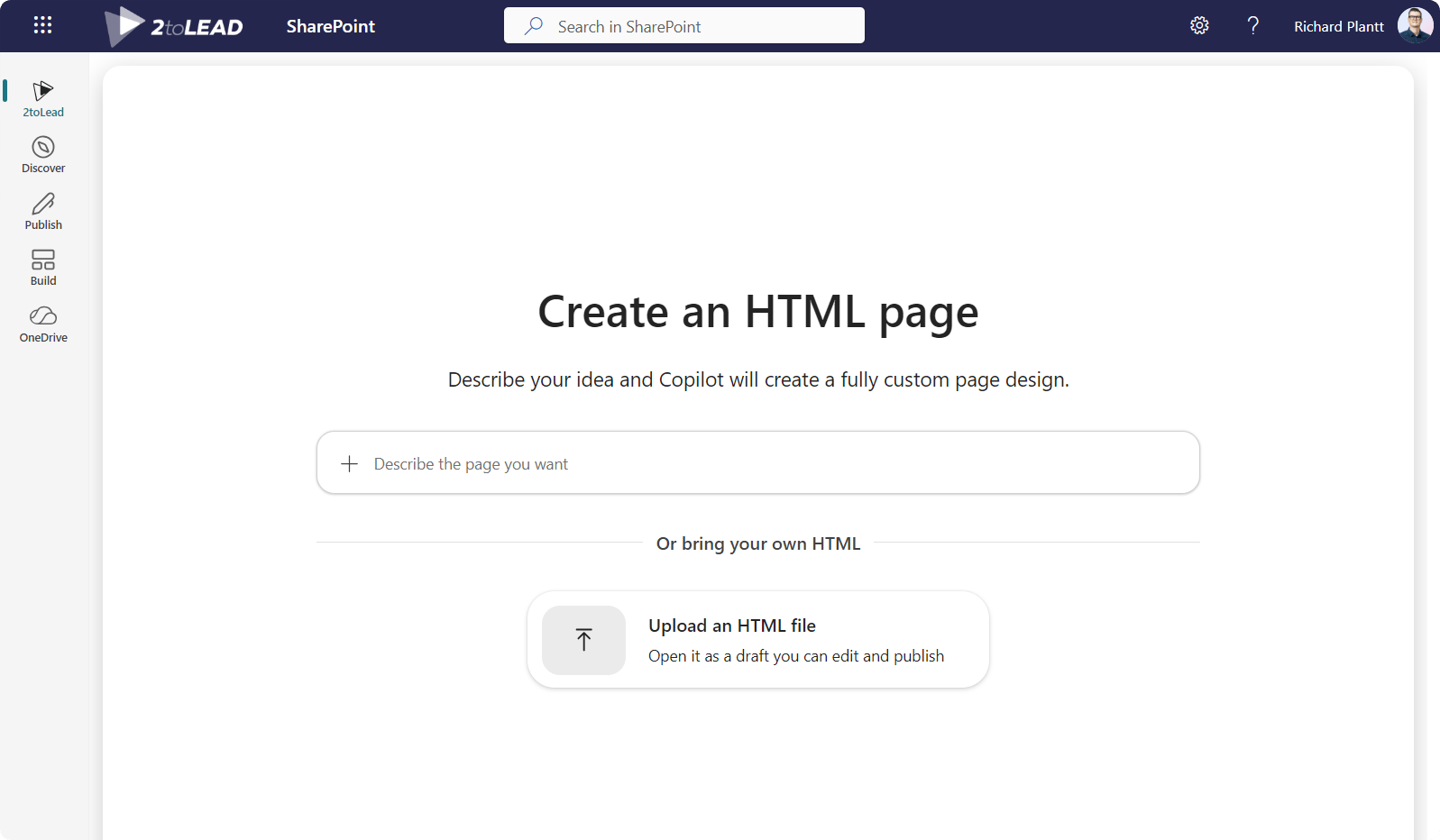
Microsoft documents support for live data sharing from lists and Excel. A practical experiment could be a project overview that makes that information easier to interpret.
We would start with a clear question, such as “What needs attention?”, rather than trying to display every available measure. Imagine a project lead opening a page before a weekly check-in and finding the essential information presented with a clear visual hierarchy.
The design challenge is deciding what belongs there. Which measures help someone make a decision? Which details provide context? Which simply add noise?
We would also distinguish between information that updates from a supported source and explanatory content that someone needs to maintain. A dashboard should make its meaning clear, not just its numbers.
Microsoft suggests creating an HTML visual identity guide with colour swatches and logo usage. For a communications team, this offers an interesting starting point for a practical reference.
We would explore a page that helps employees understand the essentials before opening detailed brand documentation. Think of someone preparing a presentation who needs a quick answer, not a comprehensive lesson in visual identity.
The opportunity is to organise guidance around everyday questions: Which colour should we use? What does appropriate logo placement look like? Where do we find the full guidelines?
Copilot-created pages use site branding, but uploaded HTML does not automatically inherit it. Copilot can be asked to update an uploaded page to match.
Team profiles, timelines and milestones are another documented scenario. We would try using these elements to introduce a programme team: who is involved, what the programme is working towards and which milestones matter.
For someone joining halfway through an initiative, that could be a useful alternative to reading months of updates.
We would focus on orientation rather than decoration. Explain the purpose. Show the journey. Make the next step obvious.
The goal wouldn’t be novelty. It would be helping a newcomer build context.
Presentation is only part of the picture. As we explore in the new role of the knowledge base in SharePoint, useful information also needs context: what matters, why decisions were made and where supporting guidance lives.
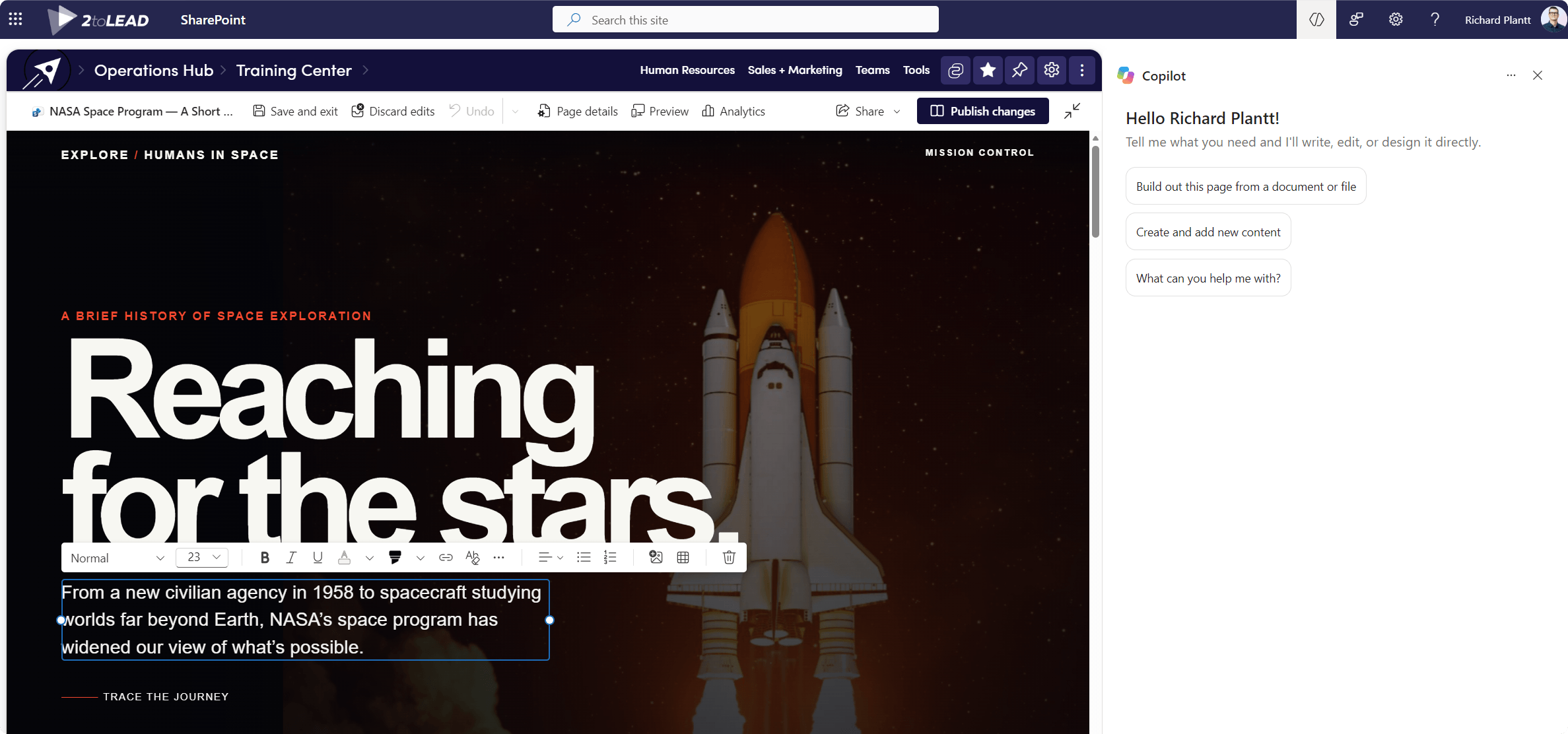
HTML pages are not a blank cheque for building anything inside SharePoint.
Microsoft blocks arbitrary data requests and outbound API calls, and live data sharing from third-party sources such as Jira is not supported. These pages run within an isolated environment, rather than having unrestricted access to the surrounding SharePoint experience.
There are publishing trade-offs, too. HTML pages currently do not support promotion to news, scheduling, co-authoring, comments, reactions or saving as templates. Office documents and PDFs can open in a new tab, but cannot be displayed inline.
Those differences matter. If the communication depends on scheduled publication or employee discussion, we would consider whether a modern page is the better fit.
Creating or editing through Copilot requires a Microsoft 365 Copilot licence. Viewing, publishing and directly editing page content do not, although appropriate SharePoint permissions are still required.
Choose one communication problem. Gather the source material. Describe the audience, content and intended layout, then explore a first draft. Microsoft supports attaching relevant files and refining the result through follow-up prompts.
Then apply your judgement. Check accuracy, accessibility and readability. Test the experience with someone who wasn’t involved in creating it. Ask what they understood and where they hesitated.
Also decide who will maintain it. A useful page needs an owner, not just an enthusiastic creator.
The opportunity isn’t to make every page different. It’s to discover where a different approach makes information more useful.
What’s one thing your employees currently have to piece together that you could help them understand at a glance?


Join Our Newsletter