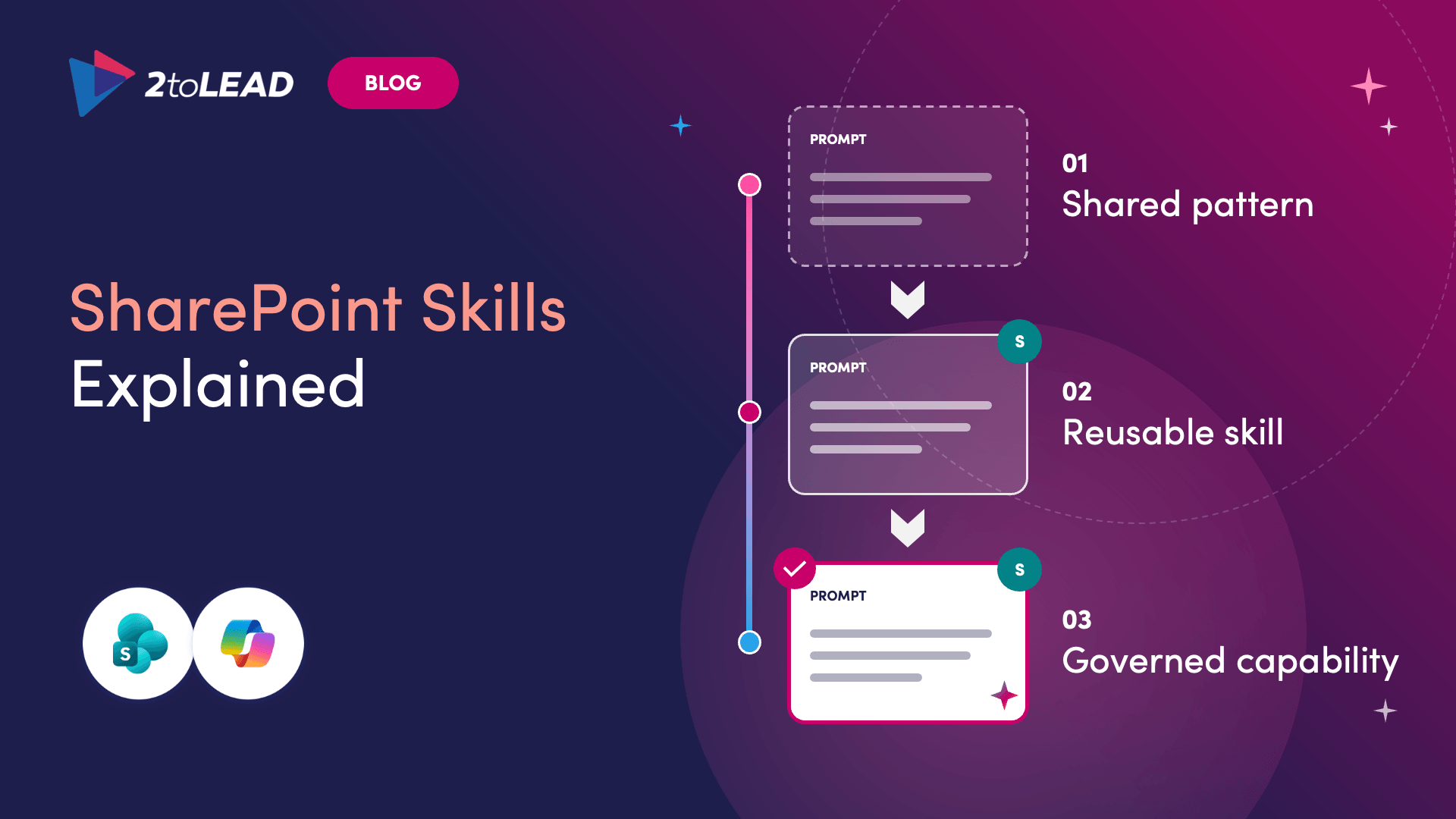
TL;DR: A SharePoint Skill captures the instructions for completing a repeatable task, so people can reuse a proven approach instead of rebuilding the process every time they open Copilot. A prompt handles a moment. A skill handles a method. An agent brings knowledge, instructions, tools, and skills together into an experience that helps people reach an outcome.
Most intranet teams already have a prompt someone retypes every week. A news editor pastes the same style rules into Copilot before every draft. A site owner asks for the same metadata check each month, worded a little differently each time. The results are close, but rarely the same.
That inconsistency matters more than it used to. Microsoft now describes SharePoint as the number one grounding source for Microsoft 365 Copilot, which means the quality and structure of intranet content shape the answers employees receive. SharePoint Skills give organizations a way to make the work behind that content repeatable, reviewable, and governed.
This guide explains what SharePoint Skills are, how they differ from prompts and agents, and how to choose the first workflows worth turning into skills.
SharePoint Skills are reusable instructions that tell Copilot in SharePoint how to complete a specific, multistep task the same way every time. Microsoft's documentation on skills frames them as a way to turn a repeatable workflow into an asset the team can reuse. You create one by describing the workflow in plain language in the Copilot in SharePoint chat panel. Copilot drafts the skill, you review and refine it, and then you save it for future use.
Once saved, a skill can load automatically when someone asks Copilot for a matching task, or it can be called by name. Either way, the person running it benefits from a method someone else has already thought through.
Skills are part of Copilot in SharePoint, which began rolling out to general availability on September 30, 2026. According to Microsoft's getting started guidance, creating and managing skills is included with the Microsoft 365 Copilot license. More advanced scenarios, such as running skills inside scheduled AI automations or across large content sets, use Copilot Credits through usage-based billing.
Prompts are a good starting point. They are fast, flexible, and personal. That last quality becomes a problem when a task needs to be done the same way across a team.
A skill addresses each of these by capturing the method once, in a place the team can see, review, and improve.
In plain language, a SharePoint Skill is a saved version of "how we do this here" for a recurring task. It describes the steps to follow, the inputs Copilot should look for, the standards to apply, and the output the team expects. Instead of reconstructing the process each time, people reuse an approach that already works.
A skill can chain together the built-in capabilities of Copilot in SharePoint. Depending on what a site supports, that includes understanding and summarizing content, organizing files and folders, and working with SharePoint lists. Microsoft's own examples include a finance team producing a quarterly report from site data, a sales team assembling proposals from past proposals and product documentation, a project team building a tracker list with agreed columns and values, and a content team applying corporate taxonomy when tagging or renaming files.
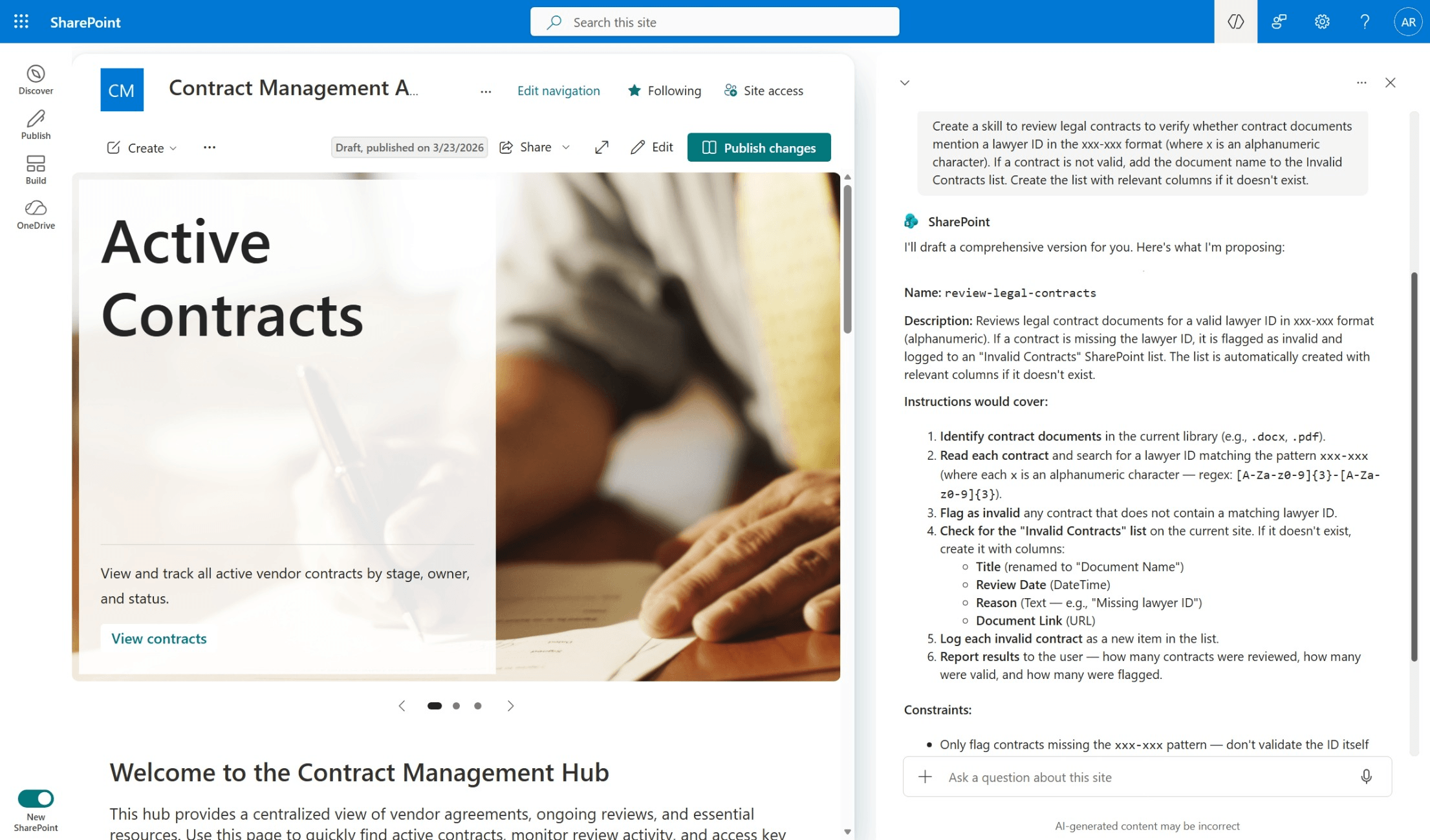
Microsoft offers two types of skills. The right choice depends on who needs to use the workflow.
When you run a skill, Copilot loads the relevant one automatically if your request matches its purpose, or you can name it directly, for example by asking Copilot to run a specific skill on the documents you have selected. A skill indicator card in the chat confirms that a skill was used. Typing /skills in the chat lists the built-in skills Microsoft provides, including the Create skill capability that guides authors through building new ones.
These three terms are often used loosely, which creates confusion about what to build. A simple way to separate them:
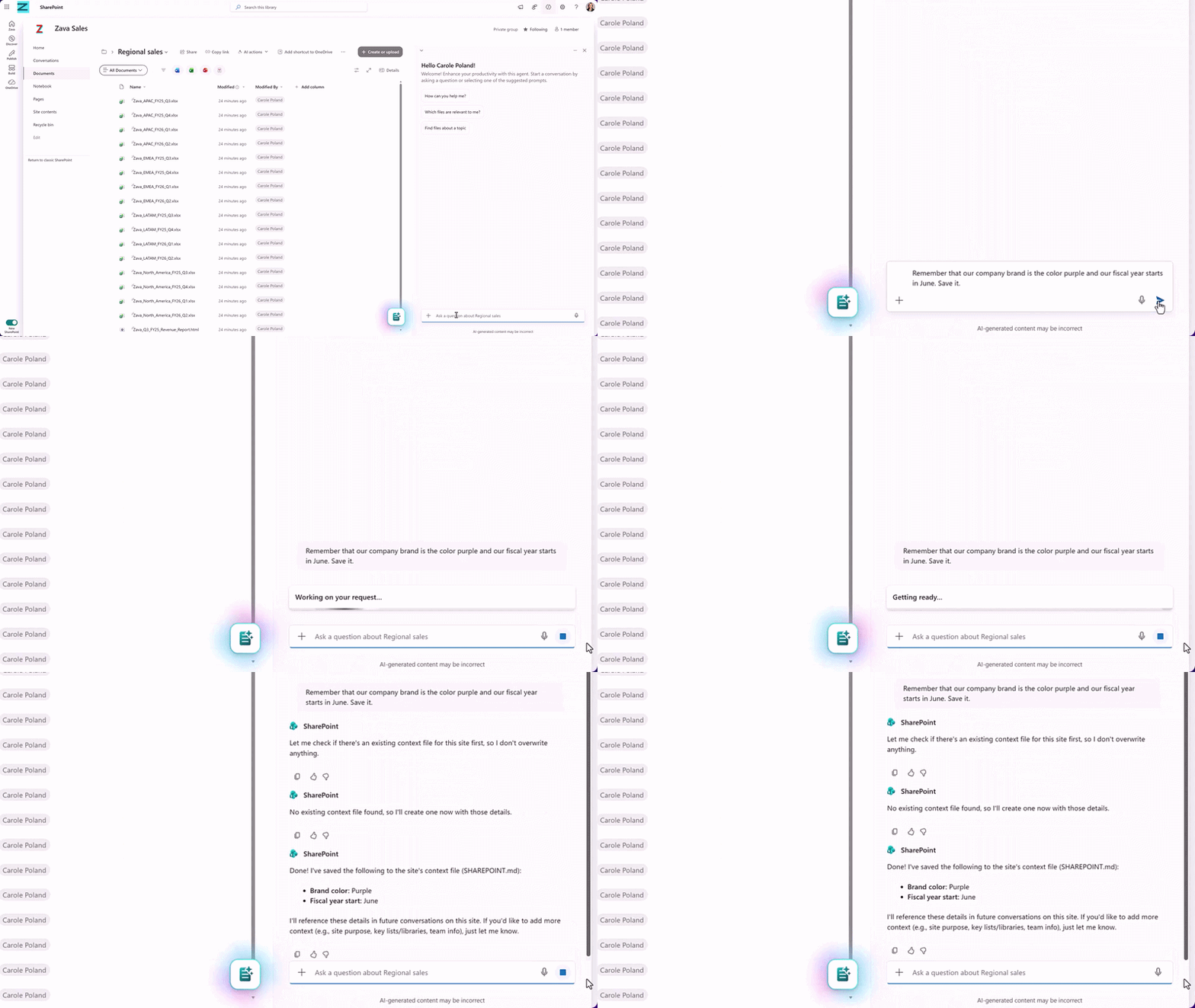
Copilot in SharePoint also supports site context, which is a related but separate idea. In its announcement of skills, Microsoft distinguished between teaching Copilot what to know, such as a team's preferred terminology or style rules, and teaching it how to act, which is the role of a skill. Context shapes every interaction on a site in the background. A skill applies when a specific task is requested.
Skills and agents are complementary, not competing. A skill provides a reusable way of working. An agent provides the conversational or task-focused experience through which people use that capability.
In SharePoint, agents are scoped AI assistants that you name, connect to selected sites, pages, and files, and configure with their own behavior and instructions. They are saved as .agent files and can be shared with colleagues to use in Microsoft Teams or Copilot Chat. Site owners can also choose which experience opens from the agent icon on a site, either Copilot in SharePoint or a custom agent, through the Site AI settings panel.
The same skill pattern is spreading across Microsoft 365 Copilot. Microsoft has introduced custom skills for declarative agents in preview for organizations in its Frontier program. In that model, a skill is a folder containing a SKILL.md instruction file plus optional resources, and the agent brings it into context only when a task calls for it. This keeps the agent focused even as its library of capabilities grows.
The practical takeaway: define the method once as a skill, then decide which experience people should use to reach it. Keep in mind that, by default, personal and site skills run inside the Copilot in SharePoint experience, so plan agent scenarios around what your tenant currently supports.
An intelligent intranet is not just a place people visit. It is a source that both employees and AI depend on for answers. Skills help intranet owners, content teams, and employees keep that source trustworthy.
The strongest early skills connect directly to an employee or business outcome. The examples below reflect the content publishing, metadata auditing, document cleanup, intranet stewardship, classification, and executive reporting scenarios that intranet teams ask about most.
Each example keeps a person in the loop. The skill prepares a draft, a finding, or a recommendation, and a content owner decides what happens next.
Skills are designed to work inside the controls organizations already manage in Microsoft 365, which makes them easier to adopt responsibly.
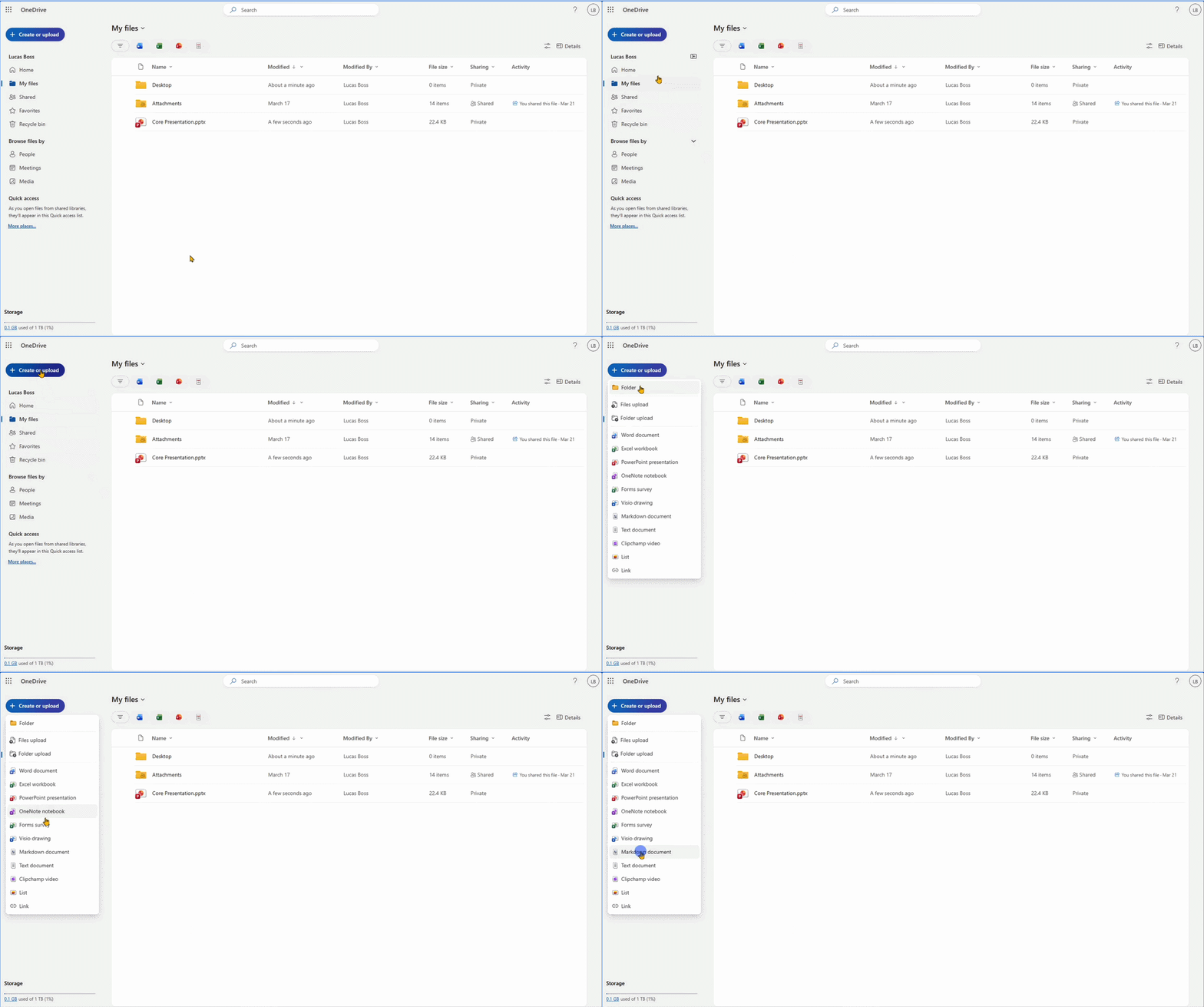
Because skill files are plain Markdown, the know-how they contain is visible to the team. SharePoint and OneDrive can open and edit Markdown files directly in the browser, although most updates can simply be requested through the chat. If you do edit a skill file by hand, keep its format intact so Copilot can continue to read it correctly.
Admins should also note a timing change. The PowerShell settings used to opt tenants and sites in or out during the preview are being retired. Microsoft will honor existing settings until November 1, 2026. After that date, availability is managed through Site AI settings and Restricted Content Discovery.
The best SharePoint Skill does not begin with a file or a configuration screen. It begins with a task employees repeat and an outcome worth improving. Use these six questions to decide whether a task is ready to become a skill.
If a task passes most of these questions, start small. Build the skill on one site, test it with a few people and a handful of files, refine the instructions, and only then share it more widely.
Skills are easiest to understand as one step on a maturity path:
Many organizations sit at the first or second stage today. Moving up does not require a large program. It requires picking the right first task, naming an owner, and treating the skill as a managed asset rather than a clever shortcut.
SharePoint Skills move good practice out of individual memory and into shared, governed methods that people and Copilot can rely on. The organizations that benefit most will not be the ones with the most skills. They will be the ones that chose the right tasks, gave each skill an owner, and kept the methods current.
Want to see skills in action? Join Microsoft MVPs Kanwal Khipple and Richard Plantt for the live webinar Designing the Intelligent Intranet with SharePoint and Copilot on Thursday, October 29, 2026. Every registrant receives the recording and slides.
SharePoint Skills are reusable, multistep instructions for Copilot in SharePoint. They capture how a repeatable task should be done so anyone with access can run it consistently.
A prompt is written for one request and usually stays with one person. A skill is saved, shared, reviewed, and reused, so the method stays the same no matter who runs it.
A skill defines how to do a task. An agent is the experience people interact with, built from knowledge sources, instructions, and behavior. Skills describe the method, and agents deliver the experience.
Creating and managing skills is included with a Microsoft 365 Copilot license as part of Copilot in SharePoint. Running skills inside scheduled automations or at large scale counts as advanced work and uses Copilot Credits.
No. A skill can act only on content the person running it already has permission to access.
Site skills are stored as SKILL.md Markdown files in the site's Agent Assets library. Personal skills are stored in the owner's OneDrive.


Join Our Newsletter