
Microsoft recently announcemd the SharePoint list agent that lets you create lists from plain language or structured content like tables. It’s preview is scheduled to roll out December 2025 to February 2026. You’ll need a Copilot license.
During preview it’s opt‑in; at general availability it’s on by default with admin controls to disable. You can invoke it from Copilot‑enabled apps and save lists to SharePoint or OneDrive.
Users with Copilot can open Copilot chat in supported apps and browse the Agent Store to find the SharePoint list agent. Frontier‑labeled agents include “(Frontier)” in the name. Admins decide who can install agents and can toggle access centrally.
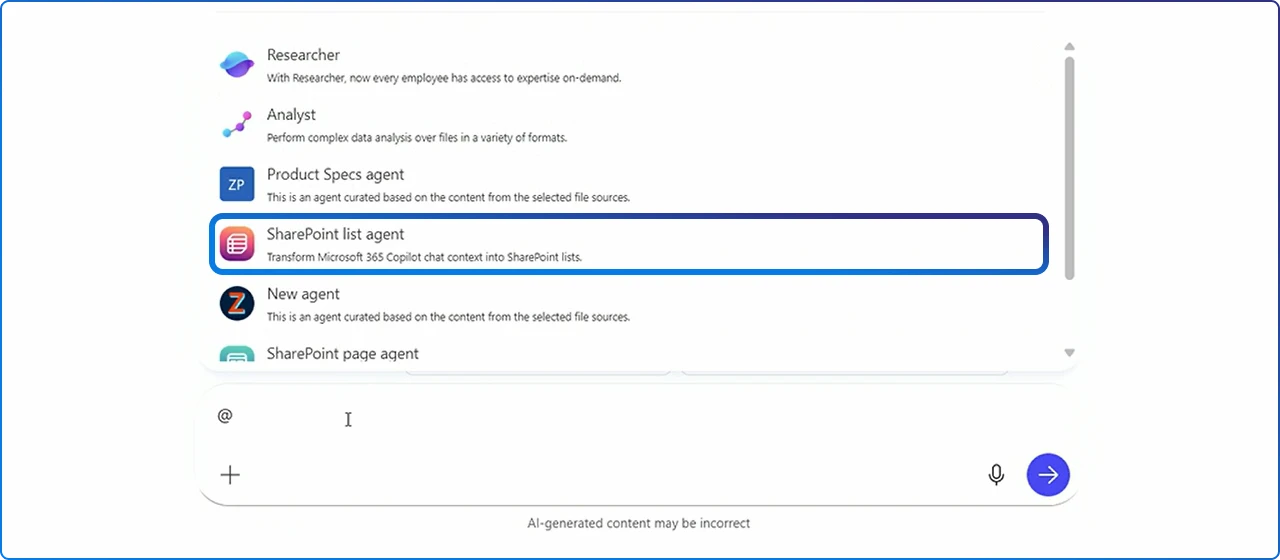
Employee Experience isn’t built on grand gestures. It lives in the small stuff: submitting requests, tracking progress, sharing updates. Lists sit at the center of those moments, quietly doing the work.
The new list agent removes friction. You describe what you need; Copilot builds it where you already are inside chat in Teams, Outlook, or Word. Drafted a table? It can turn that into a properly typed list so your data is easy to filter, sort, and report.
More teams will move from spreadsheets and ad‑hoc trackers to governed, shareable data with sensible metadata, without a training marathon.
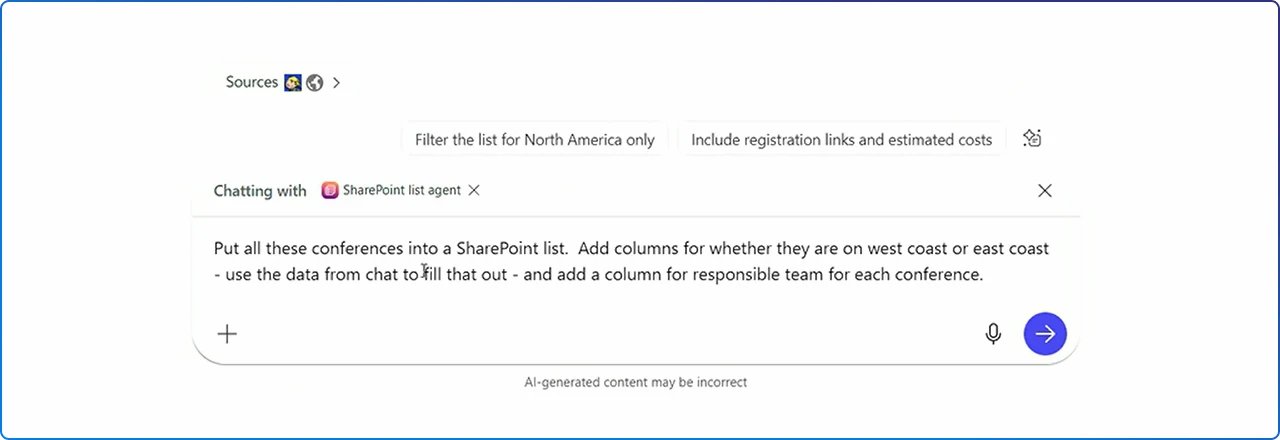
The list agent understands descriptions: name, columns, types, choices, views. Copilot builds it without jumping into the SharePoint UI.
Working from a document? Copilot can convert a table to a list in one step, inferring column types like date, currency, and person when it can.
You can save the list to a SharePoint site or OneDrive. During preview, admins enable it. At GA, it’s installed and on by default, with a central toggle in the Microsoft 365 admin center if you need to disable.
If your org participates in Frontier (Microsoft’s early access program), you can create pages and lists directly with “@SharePoint list agent” in Copilot chat. Frontier experiences are clearly marked in the Agent Store and managed with your tenant’s existing controls
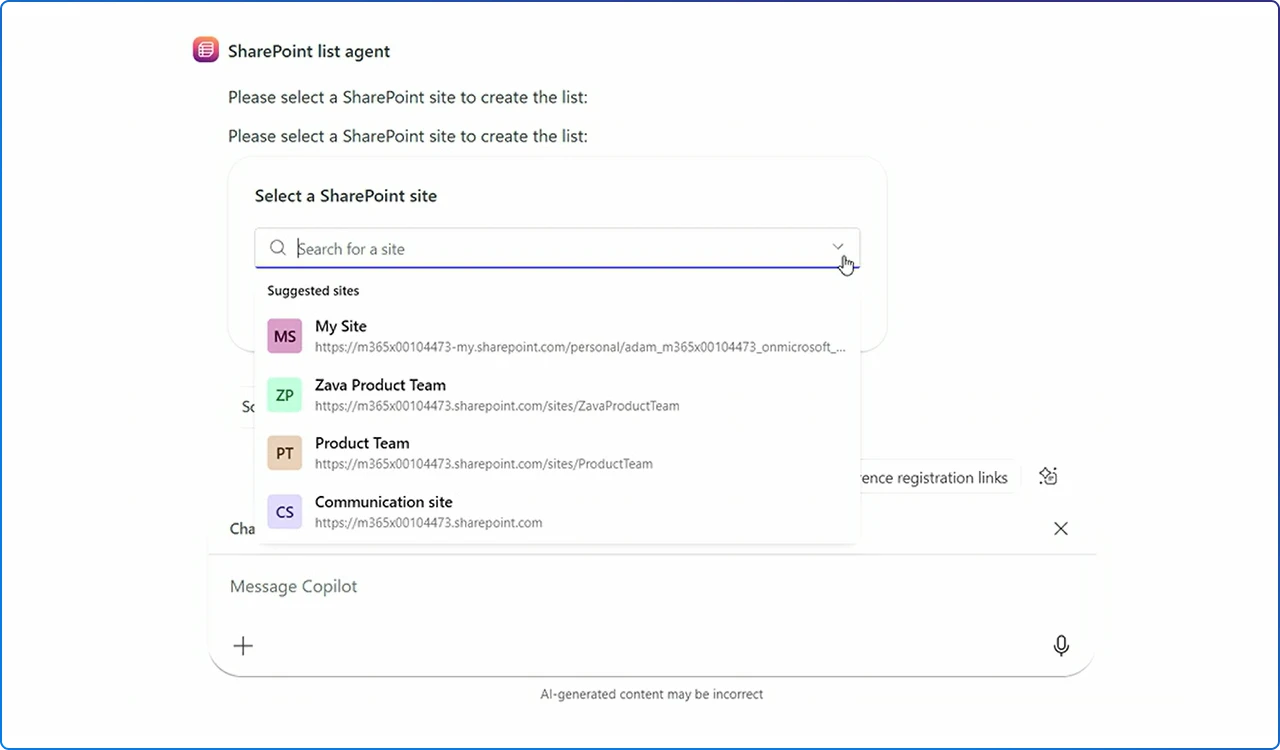
Start where the pain is obvious: intake.
Ask Copilot to create a “Design Intake” list with columns for request type, priority, due date, and status. Since fields are typed and constrained, entries stay clean and easy to triage.
Already in a spreadsheet or Word table? Convert it to a list so you can add validation, required fields, and views like “due soon” or “awaiting approval.” This moves work from ad‑hoc tracking into governed data that drives dashboards and automation.
For leadership updates, shape views that shorten the path to decision: a summary grouped by status, an “audit” view showing recent changes, and a filter for overdue items.
Use these patterns in Copilot chat or the agent store listing for the SharePoint list agent.
Prompt: Create a SharePoint list called “Design Intake” with columns: Title (single line), Request Type (choice: Graphic, UX Research, Accessibility Audit), Priority (choice: Low, Medium, High), Due Date (date), Requestor (person), Status (choice: New, In Review, Blocked, Done). Add a view grouped by Status and a filter for Due Date in the next 30 days.
You’re specifying types, constraints, views, and grouping up front, the agent will scaffold the information architecture instead of leaving it as “title + notes”.
Prompt: Convert the table in my Word doc “Q1 Vendor Contracts” into a SharePoint list. Infer column types for Contract Value (currency), Start Date (date), Renewal Term (number), Vendor (lookup if possible), and add a view that sorts by Renewal Term descending.
This leans on the structured content conversion and type inference.
Prompt: Create a list “Employee Equipment” on the HR site with unique permissions (read for HR Visitors, edit for HR Members). Add required fields for Asset Tag and Status, and a validation rule that Asset Tag must be unique. Include a private view “Audit” showing items modified in the last 30 days.
You’re curating permissions, required fields, validation, and operational views—turning the list into a controlled system, not just a data bucket.
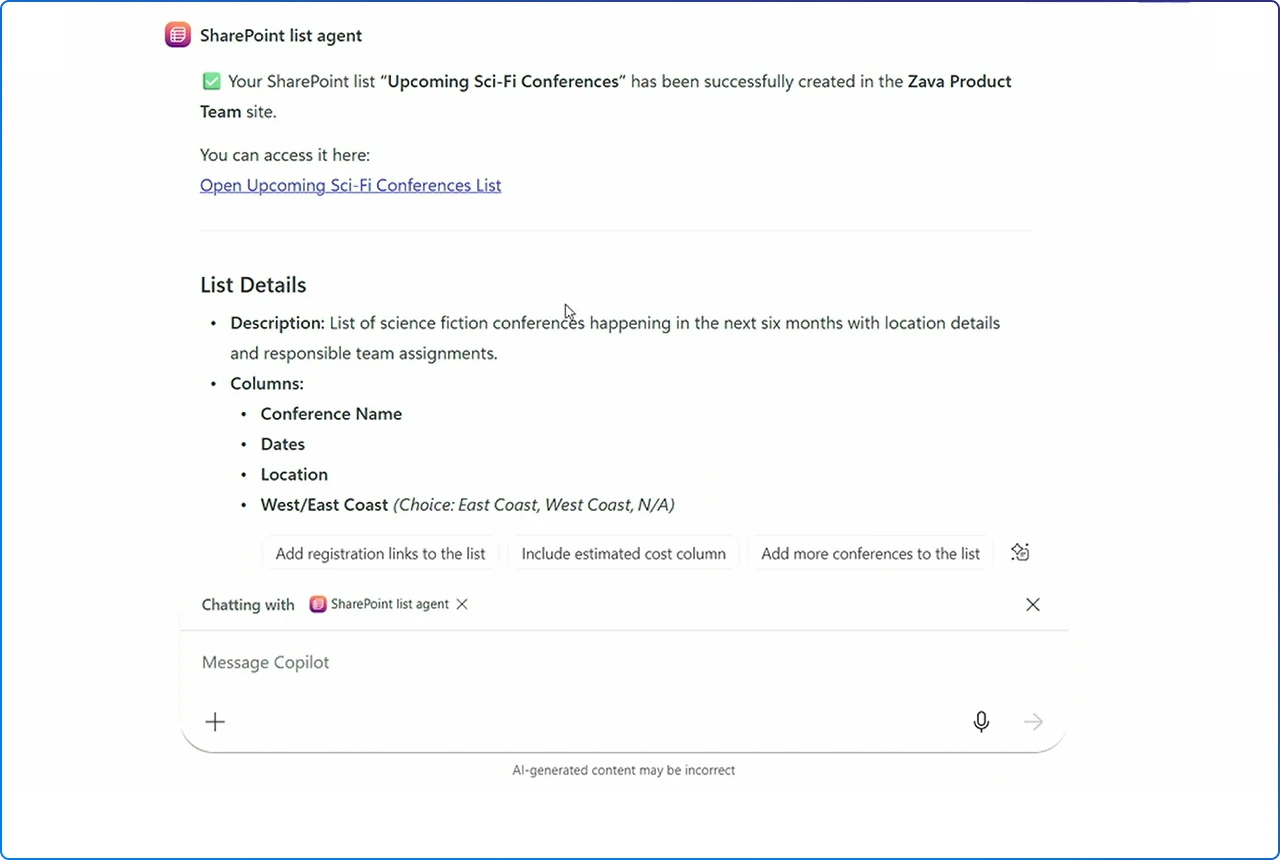
During preview, the list agent is opt‑in. At GA, it’s installed and on by default for tenants with Copilot. Admins can disable it in the Microsoft 365 admin center. Frontier experiences live inside your tenant and follow your organization’s store settings and policies.
If broad use isn’t the right first step, pilot with selected groups. Document your prompt patterns and publish a short List Design Guide covering naming, standard choices, and permission models. You’ll keep creation fast and consistent.
If your org isn’t ready for broad use, pilot with selected groups. Document your prompt patterns and publish a short “List Design Guide” covering naming, standard choices, and permission models. This keeps list creation consistent while still fast.
In the first 30 days, choose three workflows. For example, we'll use our examples from above; intake, asset tracking, and event sign‑ups. Create prompt recipes that anyone can reuse. In days 31‑60, tune columns and views, add validation, and wire notifications with Power Automate where it helps. In days 61‑90, expand to adjacent teams and begin measuring outcomes like request cycle time and reduced reliance on unmanaged spreadsheets.
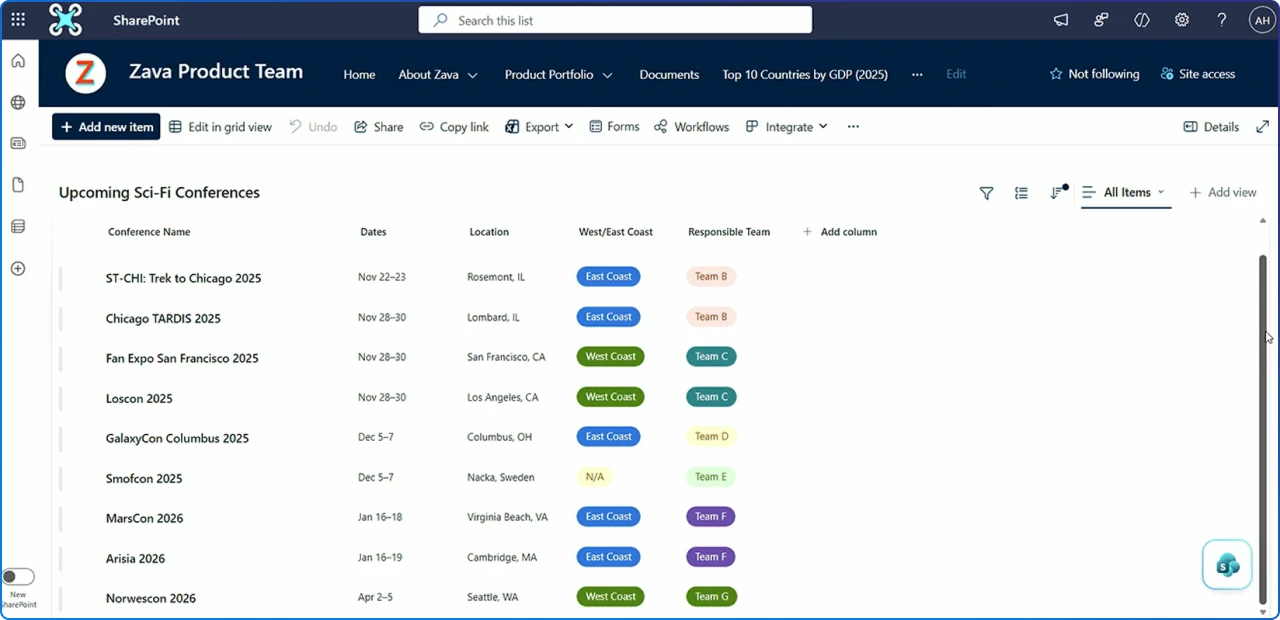
Focus on a few indicators: time from prompt to usable list, the percentage of items that pass validation on first entry, and cycle time from intake to “done.”
Also track how often teams retire shadow spreadsheets in favor of governed lists. These are the moments where EX improves, less friction, faster alignment, and clearer reporting.
The fastest way to feel the value is to try it. Ask Copilot to “create a Campaign Intake list with status, priority, and due date,” then watch how your workflow clicks into place.
The SharePoint list agent isn’t just a convenience. It’s a bridge: from conversation to structure, from ad‑hoc to governed, from friction to flow. Use it to remove micro‑frictions in the workday, the kind that quietly shape how people feel about your digital workplace.


Join Our Newsletter