Three departments publish the same kind of update in the same week.
HR's page opens with a full-width banner, and the one date employees need is buried in paragraph four. Finance uses three dense columns that turn into an endless scroll on mobile. IT's page looks great, because the one person on the team who really knows SharePoint design built it. She's on vacation next week.
Nobody did anything wrong. Each author just started from a blank page.
Good SharePoint page design comes from a system of reusable patterns, not from designing each page by hand. Organizations get more consistent, accessible intranet content when they combine four things: templates for the page types they publish most, Flexible Sections used within agreed layout rules, Copilot for first drafts with human review, and accessibility checks built into every template. Authors get a reliable starting point, and the intranet looks and reads like one organization.
A blank page makes every author redo design decisions that should already be settled. Over time that leads to inconsistent layouts, slower publishing, accessibility mistakes, brand drift, and heavy reliance on a few experienced authors.
Most intranet teams feel these costs without ever adding them up:
There's also a newer cost. SharePoint is now a key grounding source for Microsoft 365 Copilot, so the structure and quality of your pages affect the answers employees get from AI, not just what they see in a browser (What is an Intelligent Intranet?). Pages that are clearly titled, logically structured, and easy to scan work better for people and for Copilot.
Good intranet design isn't about one beautiful homepage. It's about repeatable patterns that dozens of authors can use well without a designer standing behind them.
A page design system answers the same questions up front, for everyone:
Once those answers live inside templates, consistency stops depending on who happens to be publishing that day.
Start with the page types your organization publishes most: news and announcements, policies and procedures, department landing pages, campaign pages, employee onboarding, FAQs, and events or learning resources.
Build these as branded templates saved on each publishing site.
.gif)
SharePoint now makes templates the default way to start a page. The Templates gallery brings together templates saved on your site, full-page apps, and ready-made templates from Microsoft. A 2026 update added 31 new templates, category filters, search within the gallery, and one gallery for both pages and news posts. Selecting + New > Page from Site contents now opens the gallery instead of a blank page,
Two practical points matter here:

Use Flexible Sections where visual hierarchy really helps the message, such as campaign heroes, stats, and story layouts. Keep layout guides switched on, and limit free-form placement to set areas of your templates so pages stay consistent, responsive, and accessible.
Flexible Sections replaced SharePoint's old three-column limit with a 12-column grid. Authors can move, resize, overlap, and group web parts much as they would in Canva or PowerPoint. That's a big creative step forward, and without a few rules it can also produce messy pages.
Flexible Sections now have layout guides that match standard column structures, a persistent toggle to show gridlines and guides while editing, and a one-step option to convert an existing standard section into a Flexible Section without losing its layout. Microsoft says the guides also help pages adapt more consistently across email, mobile, and browser views.
Five rules keep Flexible Sections working for you:
Copilot and the SharePoint Page Agent help authors get from an idea to a first draft faster, restructure existing content, and speed up repetitive publishing work.
They work best on top of your templates and standards, with a person reviewing every draft for accuracy, tone, accessibility, and relevance.
Page editors with a Microsoft 365 Copilot licence get an AI authoring panel. It can generate page sections from natural-language prompts, edit existing content through chat, and use Microsoft 365 files as grounding. AI-generated changes are highlighted, and authors can switch back to manual editing at any point.
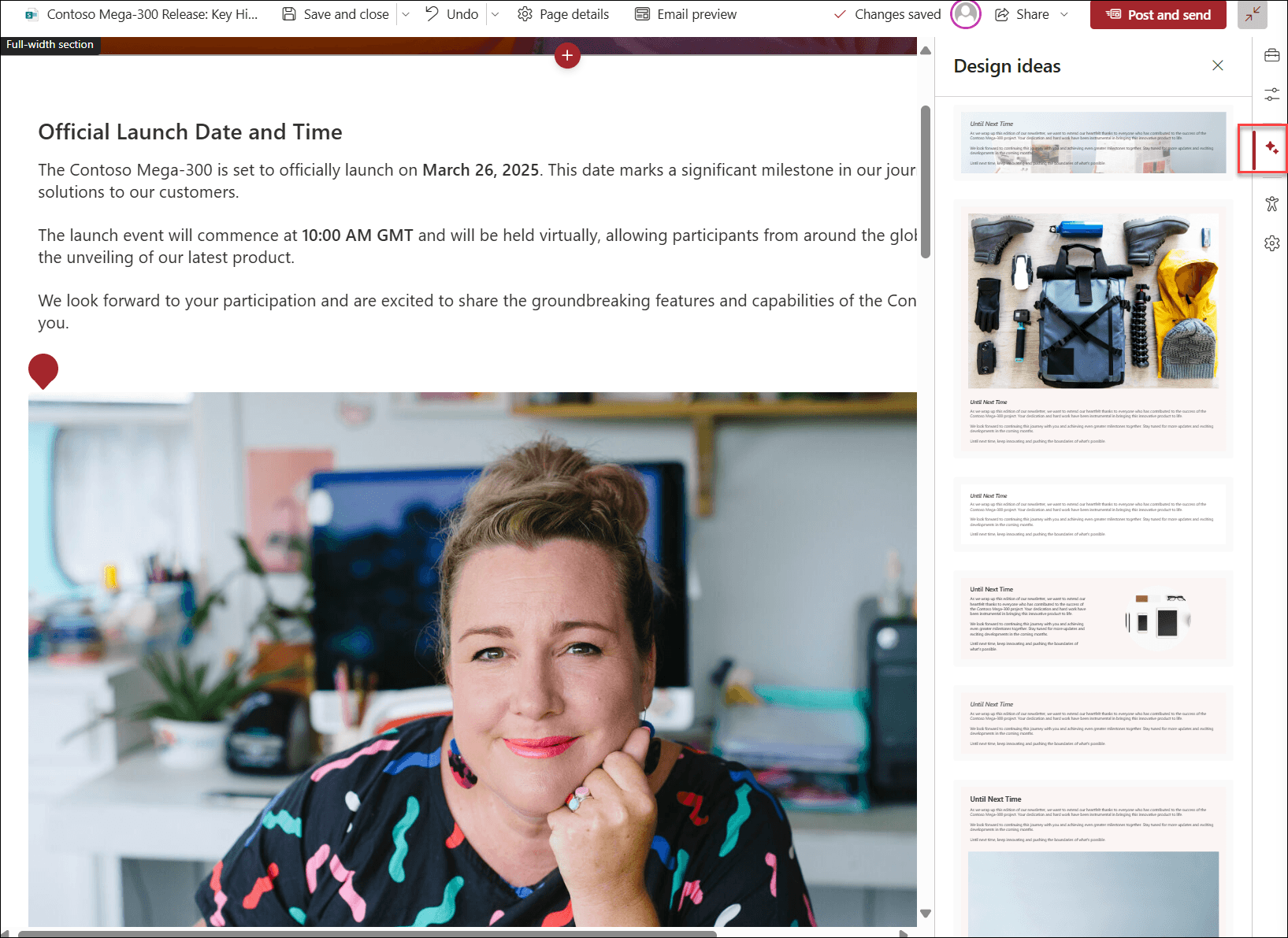
Copilot in SharePoint began rolling out to general availability on September 30, 2026, and everyday capabilities are included with the Microsoft 365 Copilot licence.
The SharePoint Page Agent turns the results of a Microsoft 365 Copilot conversation into SharePoint news posts or pages that you can then customize. It's part of Microsoft's Frontier program. The first draft is automated, while the final design, images, and messaging stay fully in the author's hands.
The principle is simple: AI speeds up the draft, and your templates and reviewers protect the standard. Without templates, AI just produces inconsistent pages faster.
If authors keep typing the same "make this SharePoint-ready" request, turn it into a reusable instruction set. This prompt comes from the SharePoint Skills Playbook for the AI-Powered Intranet. Paste it into Copilot in SharePoint chat on the site where you want it saved:
Create a skill called Content Publishing Coach Skill.

This skill helps internal communicators and SharePoint content creators turn rough notes, drafts, announcements, campaign updates, policy summaries, and employee communications into clear, accessible, well-structured SharePoint pages and news posts.

The skill should improve content before publishing. It should focus on clarity, audience value, structure, tone, accessibility, scannability, title quality, summaries, calls to action, metadata, and channel fit. When this skill runs, it should:

1. Recommend the strongest title.
2. Provide 3 to 5 alternative title options.
3. Write a short SharePoint-friendly summary.
4. Produce a SharePoint-ready draft with clear headings and scannable sections.
5. Suggest a clear call to action.
6. Recommend useful metadata such as audience, topic, department, content type, campaign, region, or review cycle.
7. Provide accessibility and readability notes.
8. Recommend whether the message belongs on SharePoint, Teams, Viva Engage, email, or more than one channel.
9. Provide a short publishing checklist.

Use this channel model:
- SharePoint is best for durable, trusted, findable information.
- Teams is best for active collaboration, group coordination, and time-sensitive team conversation.
- Viva Engage is best for open conversation, community engagement, questions, feedback, and leadership visibility.
- Email is useful when a defined audience needs direct delivery or formal notification.

The skill must preserve the author's intent and meaning. It must not invent facts, dates, policies, approval details, deadlines, links, names, commitments, or benefits that are not provided.

Use a personal, friendly, and professional tone. Keep the language clear and easy to understand. Avoid generic corporate language.

Save this as a reusable skill on this site.
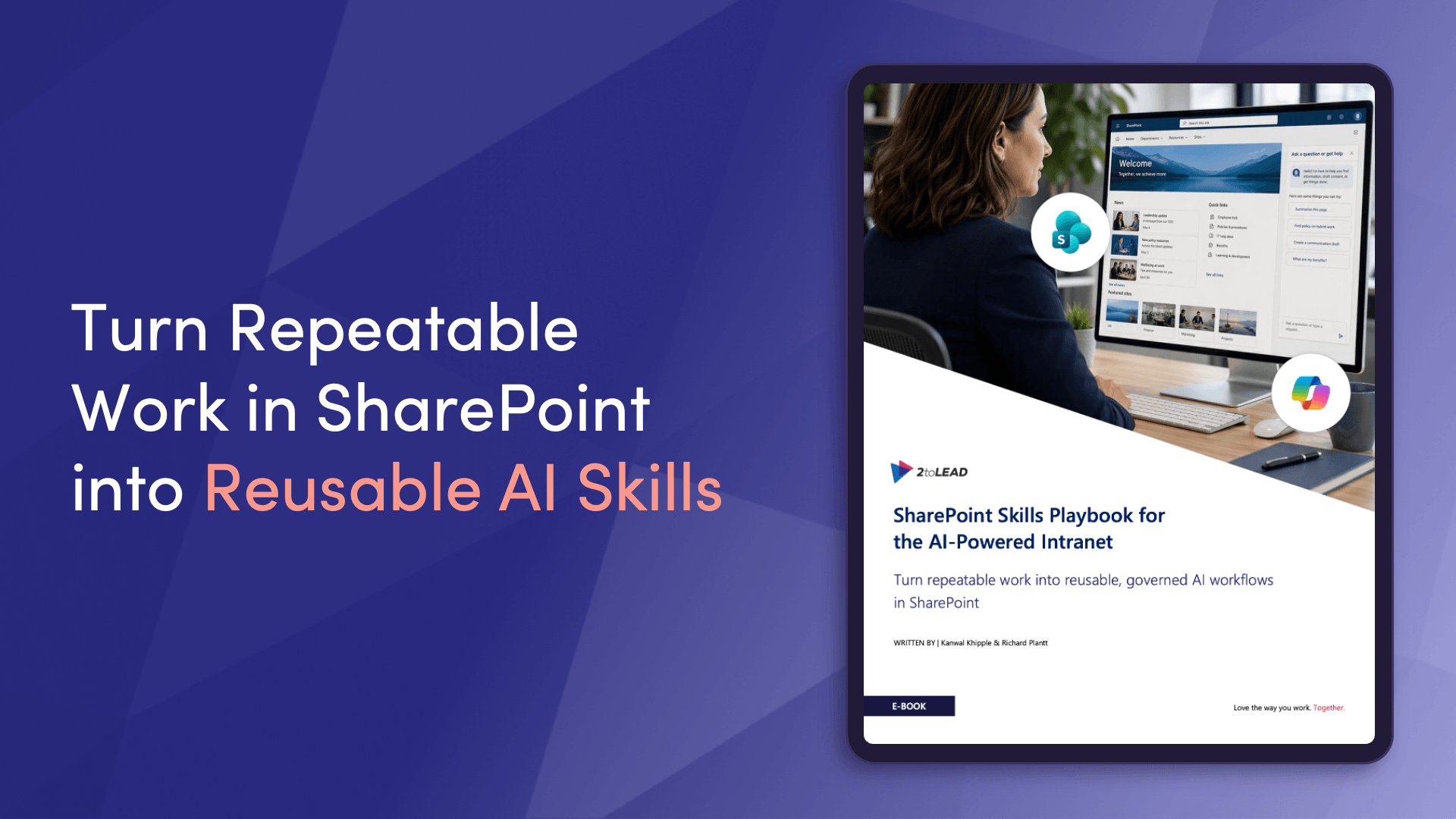
The Content Publishing Coach is one of seven ready-to-adapt skills in the SharePoint Skills Playbook for the AI-Powered Intranet. You'll also get the Intranet Health, Metadata Completeness Auditor, and Policy Content Reviewer skills, plus a lab worksheet that helps you scope your first skill in five lines.
Make accessibility checks and author guidance part of the template itself, then record each template in a page pattern library that sets out its purpose, audience, owner, required components, review cycle, and the right use of AI.
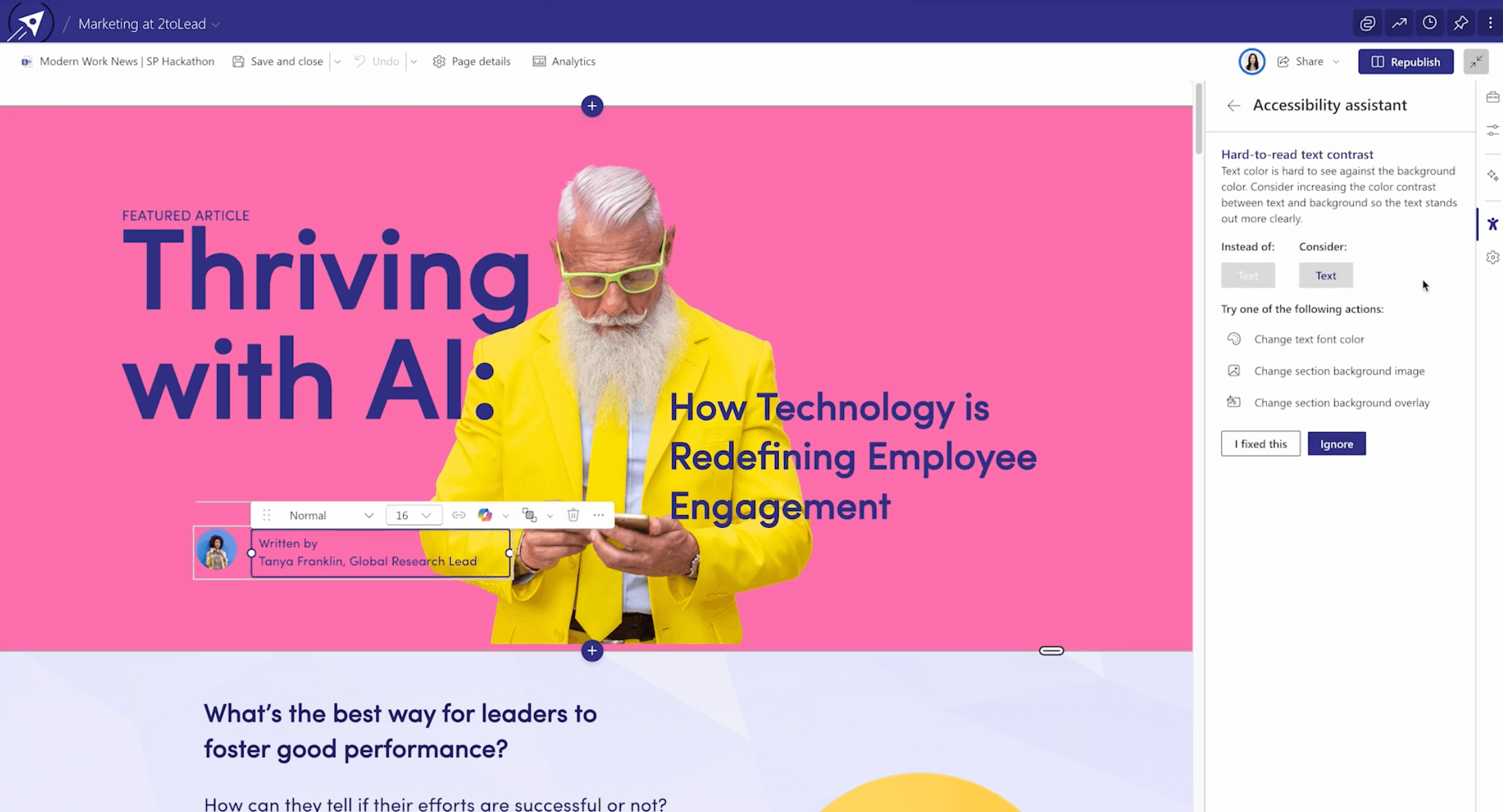
When accessibility depends on each author remembering every rule, mistakes are guaranteed. When it's built into the template, the right choice becomes the default. SharePoint has also added a built-in accessibility assistant that flags issues like heading order, missing alt text, and contrast while you edit.
Templates don't just protect quality. They make it possible for more people to take part:
To make templates last, record each one in a simple page pattern library. Every pattern should set out:
Start with the three or four page types you publish most, prove the pattern works, and expand from there. This is the groundwork that lets an intelligent intranet grow without falling apart.
If your authors keep rebuilding the same pages in slightly different ways, the problem may not be effort. It may be that there's no shared design system. We can help you set up the templates, standards, and skills your team needs to publish with confidence.
See how it comes together live. Join Microsoft MVPs Kanwal Khipple and Richard Plantt on Thursday, October 29, 2026 at 11:00 AM ET for Designing the Intelligent Intranet with SharePoint and Copilot. You'll watch page templates, Flexible Sections, and Copilot-assisted authoring demoed inside SharePoint, and you can bring your own intranet questions to the live Q&A.
Can't make it live? Register anyway and we'll send you the recording.
What is SharePoint page design? SharePoint page design is how intranet pages are structured, laid out, and styled so employees can quickly find, understand, and act on information. Modern SharePoint page design relies on reusable templates, Flexible Sections, consistent branding, and accessibility standards, not one-off custom layouts.
What's the difference between a SharePoint page template and a Flexible Section? A page template is a reusable starting point for a whole page or news post. A Flexible Section is a layout option within a page that uses a grid, so authors can move, resize, and overlap web parts. Templates set the overall pattern, and Flexible Sections add creative control inside it.
Can SharePoint page templates be shared across sites? No. According to Microsoft, you can't use a page template across sites or groups. Templates are saved on each site, so organizations need a plan for getting approved templates onto every publishing site.
Do I need a Copilot licence to create SharePoint pages with AI? Yes. The AI authoring panel in the SharePoint page editor is available to page editors with a Microsoft 365 Copilot licence The SharePoint Page Agent also works through Microsoft 365 Copilot.
How do I make SharePoint pages more accessible? Build accessibility into your templates. Use a logical heading order, descriptive link text, alt text for meaningful images, approved colour pairings that meet contrast standards, plain language, and short scannable sections. Then review every page before publishing.
How many page templates should we start with? Start with the three or four page types your organization publishes most, usually news, policies, department landing pages, and FAQs. Standardize those, train authors on them, and add more patterns once the first set is in regular use.


Join Our Newsletter