What a year it has been. Microsoft and the SharePoint product teams have certainly been busy. There were several SharePoint updates delivered, too many to mention each of them here. This list primarily focuses on the ever changing employee experience and how work gets done in the modern digital workplace.
Sidenote for the curious, if you ever want to see the complete picture, checkout the Microsoft 365 Roadmap.
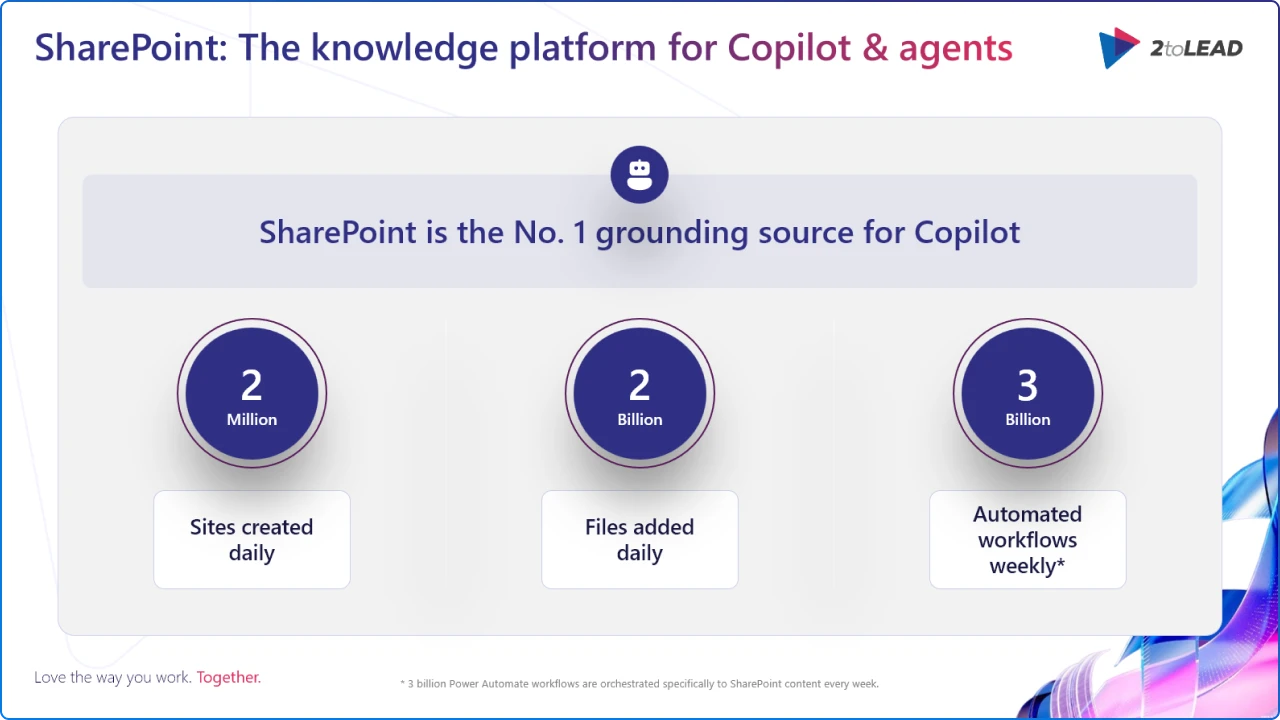
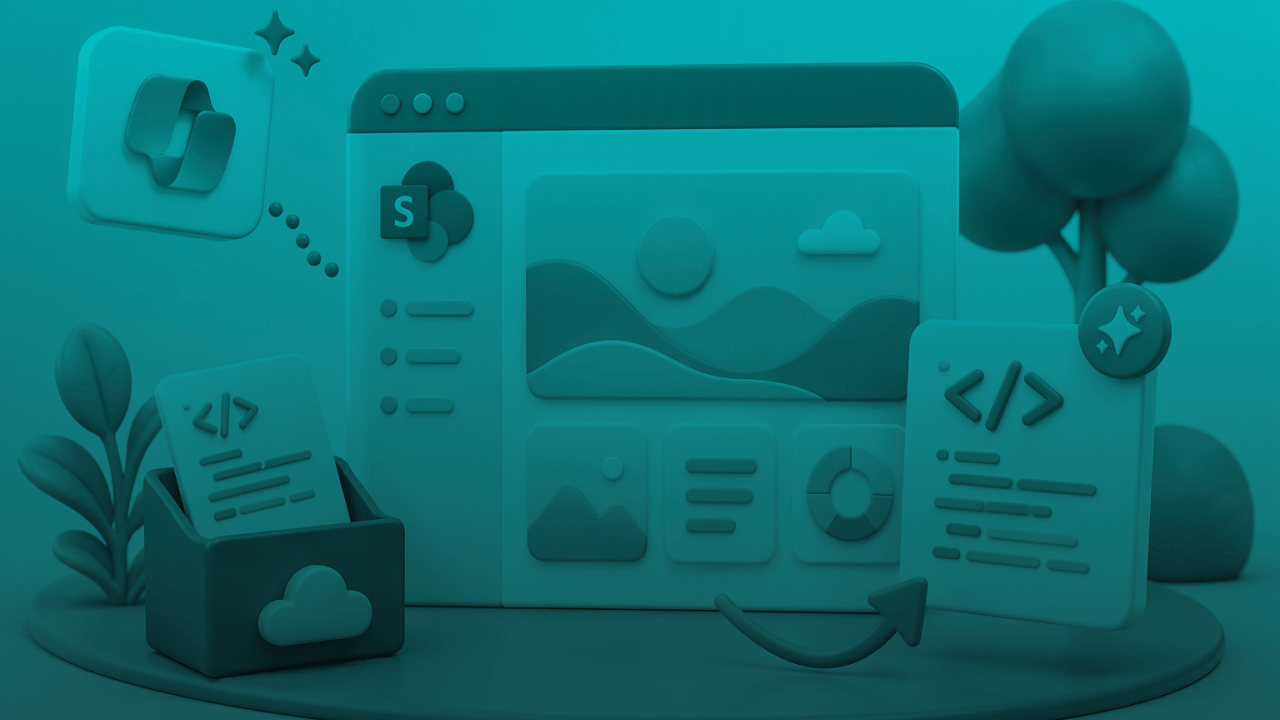
This matters because we can see how SharePoint is the primary content backbone for Microsoft 365 and a key citation source for Copilot. Together, they materially improve intranet usability, governance, and content quality, which are the inputs Copilot needs for reliable answers and better employee experiences.
At true enterprise scale, organizations are creating over 2 million sites per day and adding over 2 billion pieces of content to SharePoint each day, making it the world’s most flexible content backbone for collaboration, communication, and automation. And that scale matters: SharePoint is the primary citation/grounding source for Copilot, which means the quality of your intranet pages, metadata, and governance now directly amplifies AI outcomes.
Without any further ado, counting down from 5 to 1, here are our top 5 SharePoint releases.
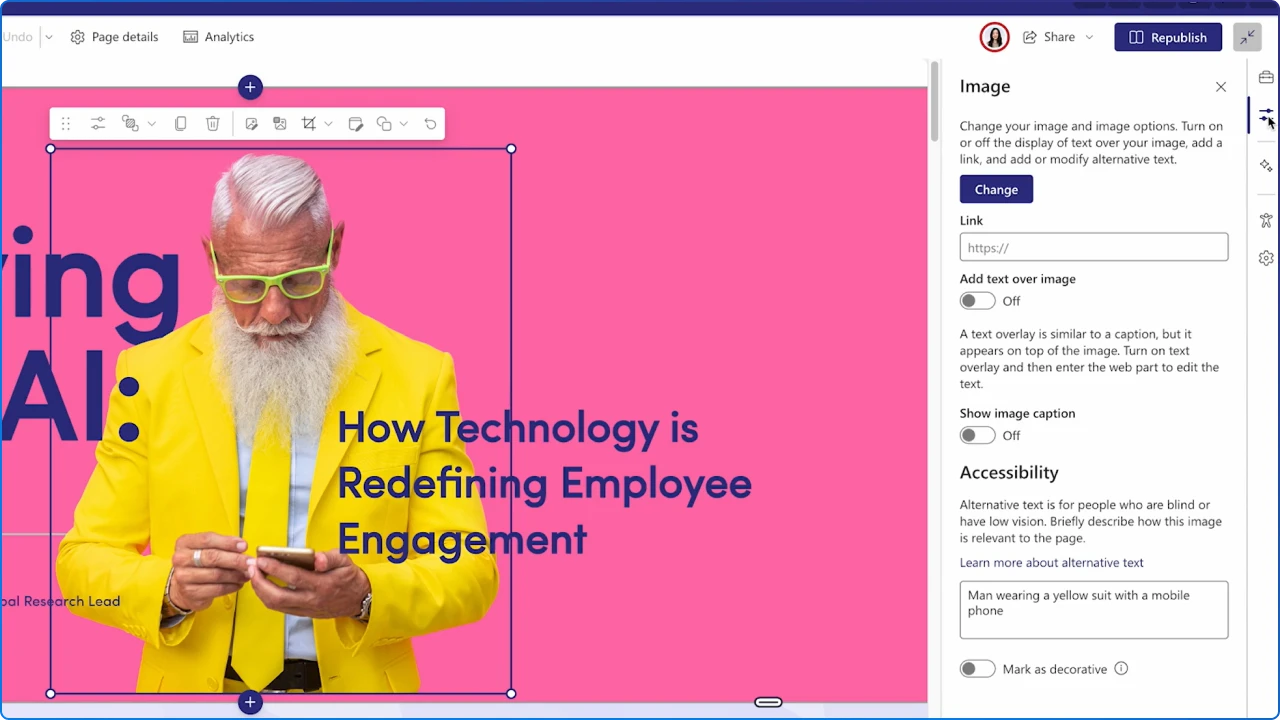
What it is: A built-in accessibility assistant for SharePoint pages that scans common web parts (Banner, Text, Image, Hero, Quick Links) for issues like heading order, missing alt-text, link problems, tables, and contrast. Authors get guided, human-in-the-loop fixes right in the page editor.
Why it matters: Accessibility is both a compliance requirement and a usability accelerant. Catching issues at authoring time raises content quality across your intranet, improves search comprehension for Copilot, and reduces rework.
How to put it to work (quick start):
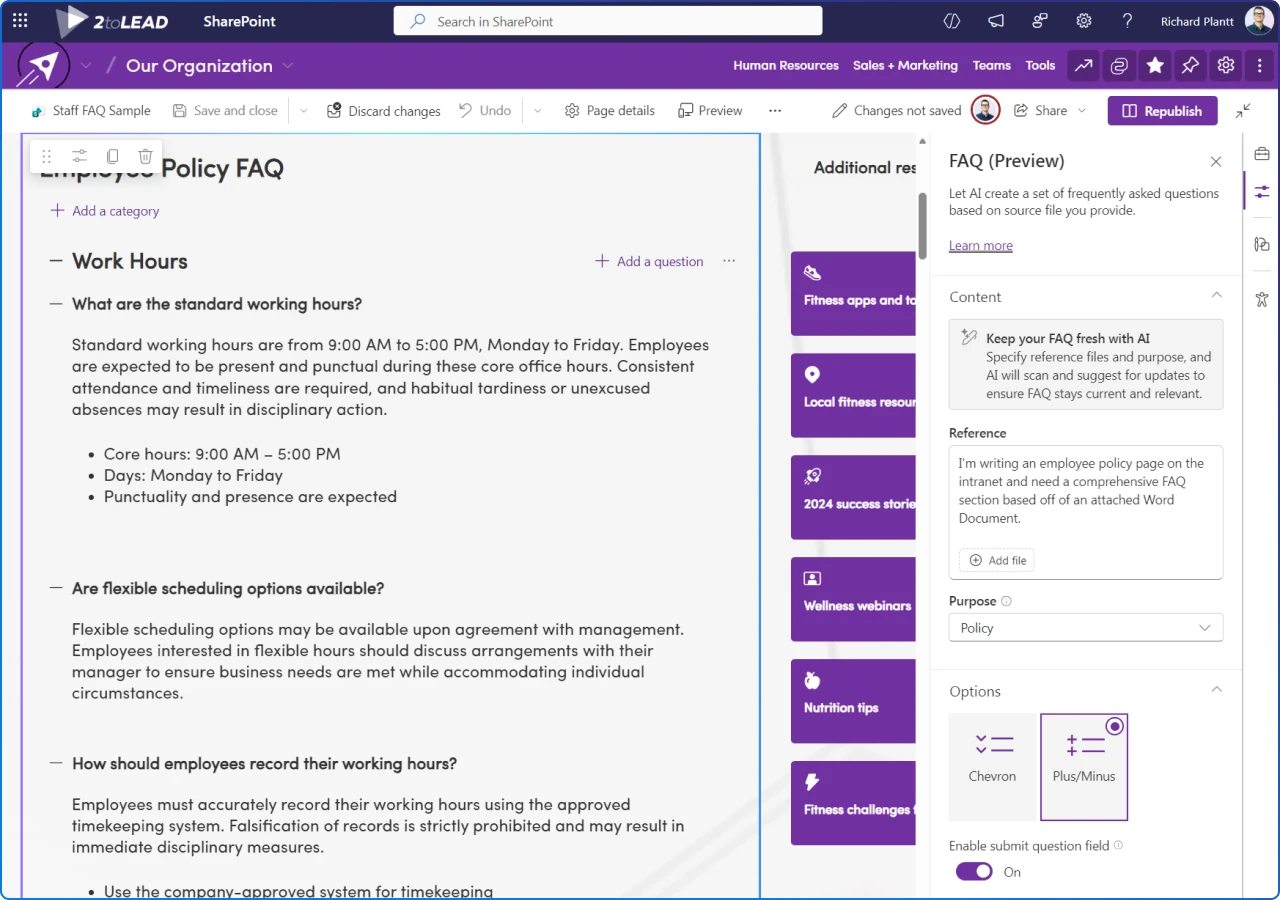
What it is: An AI-assisted FAQ builder that generates Q&A from grounding files (Word, PowerPoint, PDF, Loop, meeting transcripts), with author controls to regroup, rewrite, and validate before publishing. Note, the creator and editor of this web part requires a Copilot license to use this feature.
Why it matters: FAQs are high-traffic content with a tendency to go stale. Automating curation (with human review) cuts the upkeep cost and keeps answers current, exactly where employees look first.
How to put it to work (quick start):
Related reading: 2toLead Insight – Introducing AI‑Powered FAQs for SharePoint
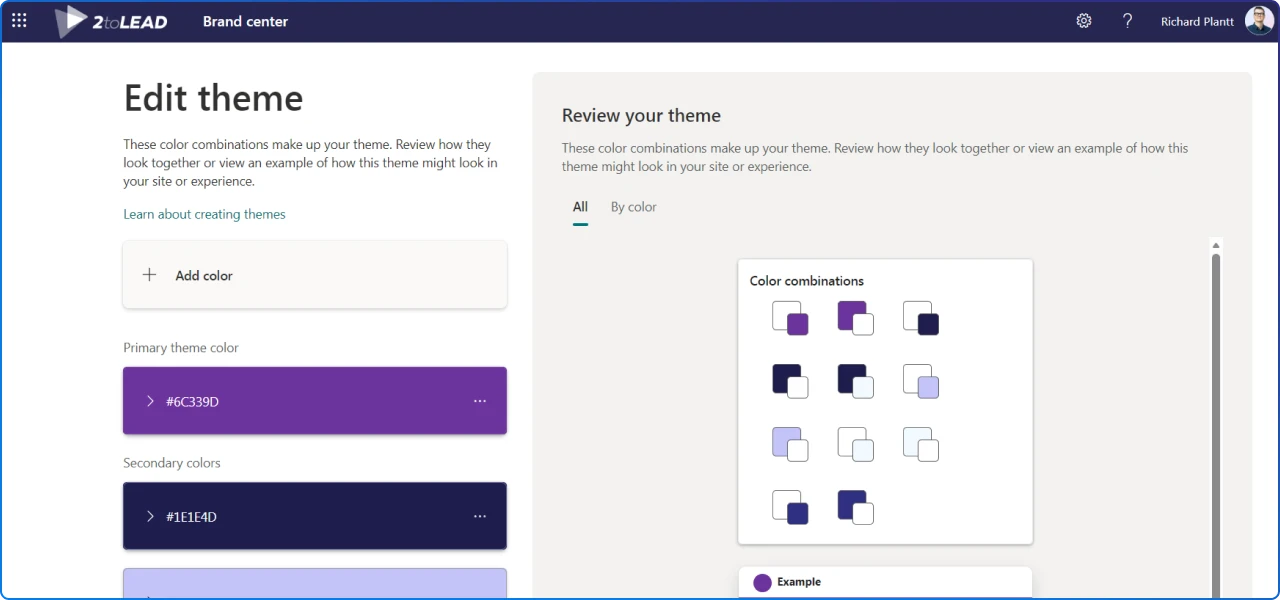
What it is: A centralized brand management app in SharePoint that standardizes fonts, colours, logos, and organization asset libraries across SharePoint and Viva Connections, enforced with CDN-backed distribution.
Why it matters: Brand coherence boosts trust and engagement; governance at the source reduces drift. It also improves Copilot’s grounding by aligning page visuals and templates with structured content and metadata.
Finally we have a way for content owners to easily manage their brand. No more technical scripts needed to generate SharePoint themes.
How to put it to work (quick start):
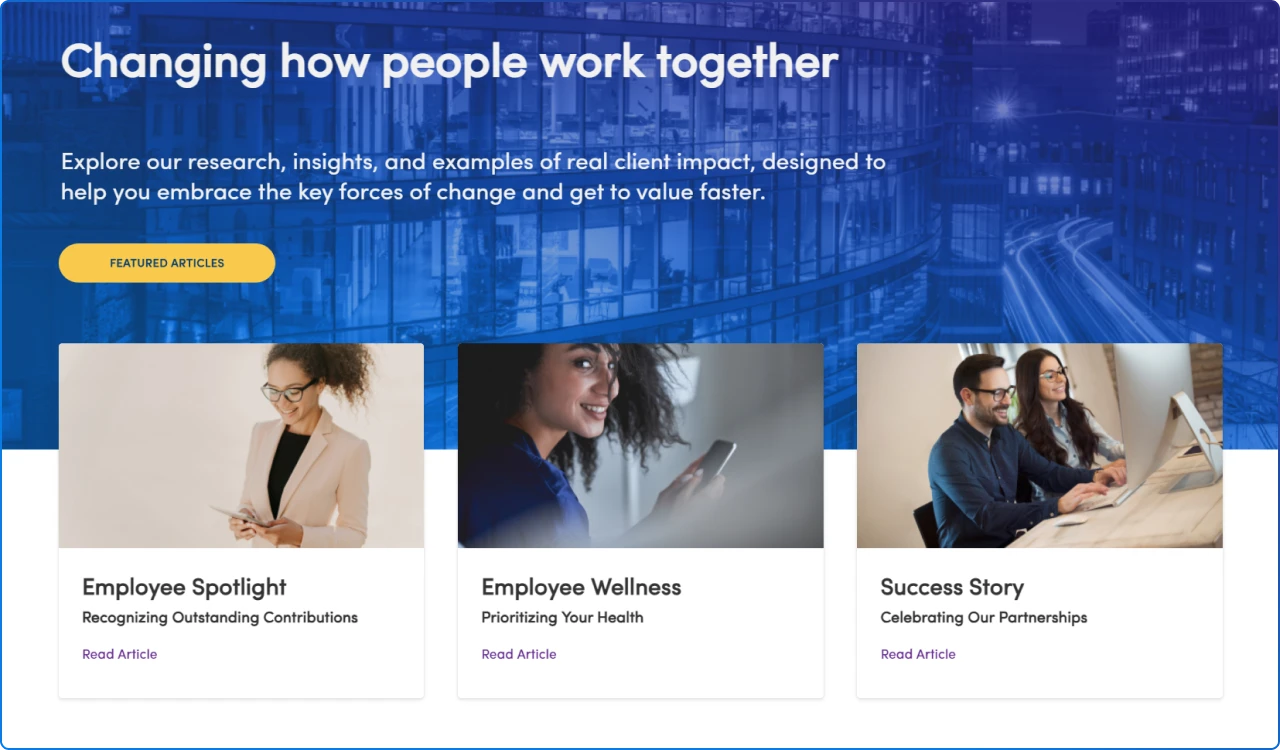
What it is: The Editorial Card web part is a modern, “hero-lite” component with three layouts (Image Overlay, Color Block, Split), rich typography, focal-point image editing, and configurable CTAs, purpose-built to create visual emphasis without building entire hero strips.
Why it matters: Internal communications work better when messages stand out. Editorial Cards make it simple for non-designers to craft on-brand highlights, which increases scannability and click-through.
How to put it to work (quick start):
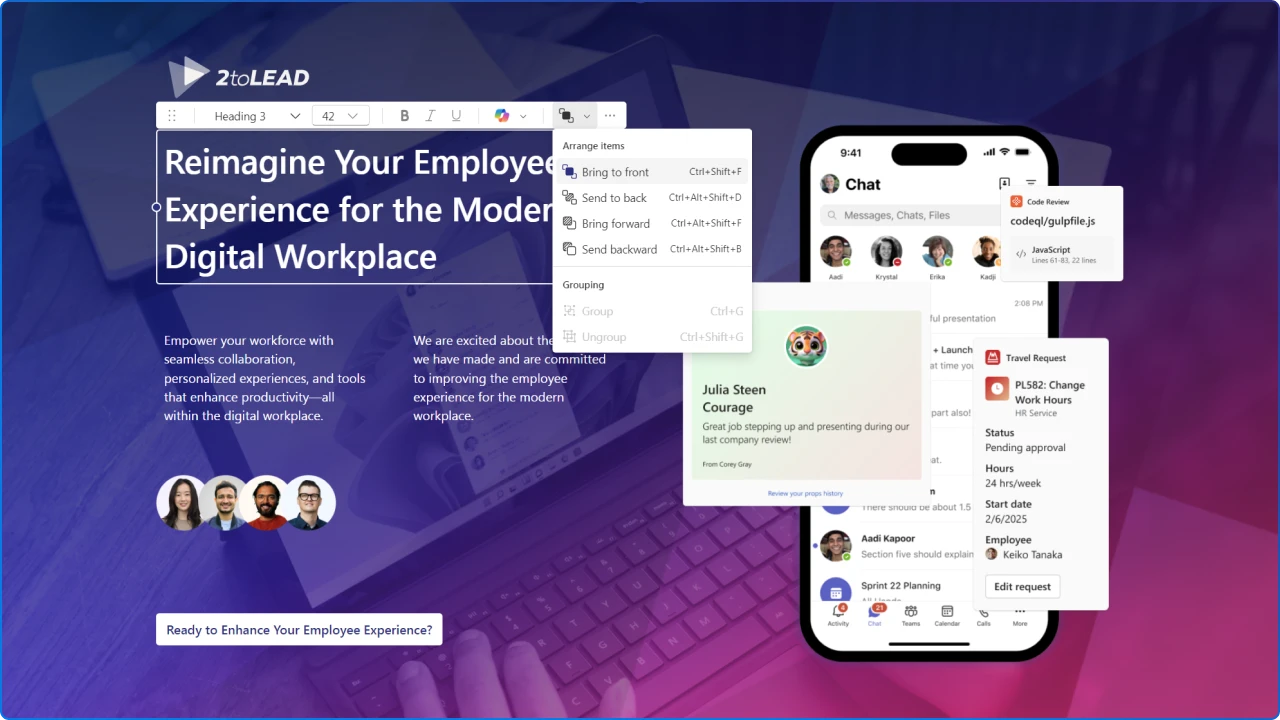
What it is: Flexible Sections are a freeform, two‑dimensional grid section type where you can move, resize, overlap, group, and template web parts, dramatically reducing the “boxy” look and unlocking editorial flexibility.
Why it matters: Page quality is employee experience. Flexible Sections help teams ship modern layouts fast, without custom code, so your intranet keeps up with brand and campaign needs, and reflows elegantly for email/mobile.
How to put it to work (quick start):
Want to see these new features in action? We showcased these capabilities in our 2025 SharePoint Hackathon submission, highlighting Flexible Sections, Editorial Cards, Brand Center themes, FAQ, and Accessibility Assistant and won our category.
Of course there were way more updates and releases this past year. Here's a couple that also deserve a shoutout.
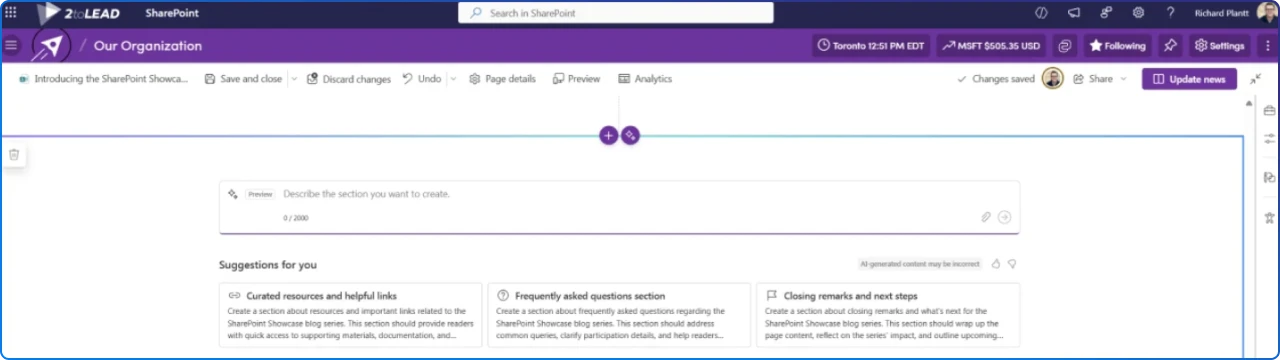
If your team hits a creative block or needs to ship a polished page quickly, AI‑powered sections are a practical accelerator. Copilot’s authoring tools and Design Ideas propose ready‑made section layouts you can refine, so authors start from a strong foundation rather than a blank canvas.
In many cases, this gets you 80% of the way there; you can then fine‑tune with Flexible Sections for precision placement and brand nuance. Again a Copilot license will be required to take advantage of this feature.
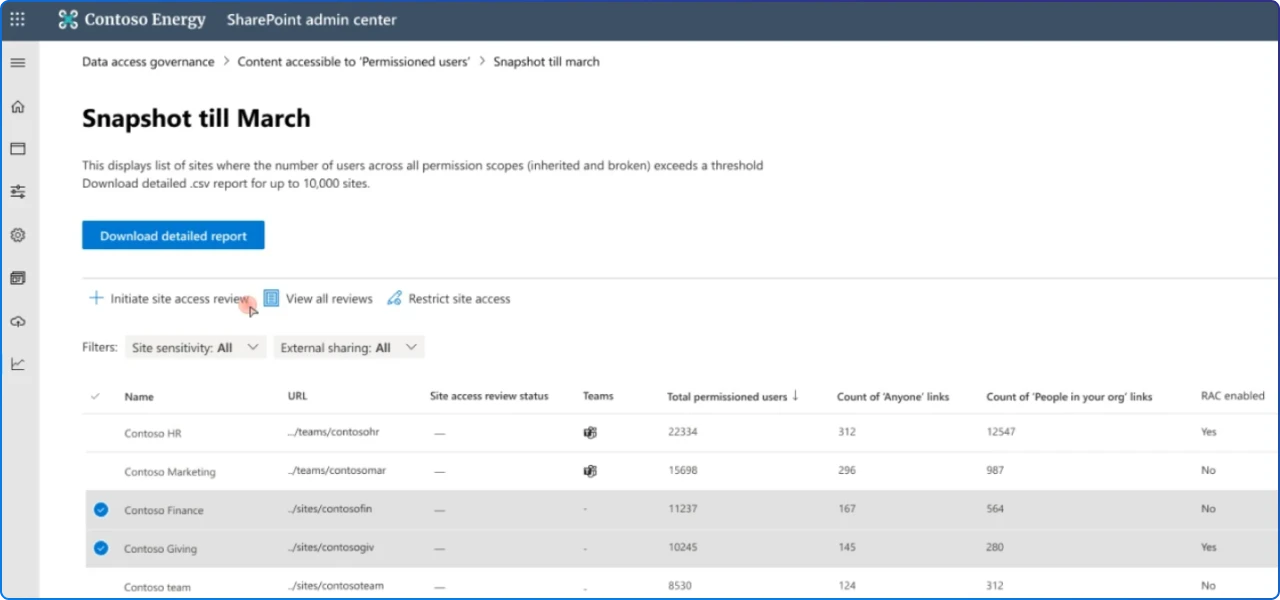
If 2025 was the year of beautiful, on‑brand pages, it was also the year governance caught up. SAM is the admin toolkit that keeps Copilot outcomes safe and reliable by reducing oversharing, cleaning up stale sites, and tightening discovery, all without derailing authors. In many tenants, SAM capabilities are bundled with the same license required for Copilot, so you can switch on governance and AI together.
This story is bigger than features. It’s about the knowledge platform your business runs on. SharePoint has become the enterprise source of truth at unprecedented scale. Millions of sites and billions of new items daily and, critically, SharePoint is Copilot’s #1 grounding source.
Looking ahead, we suspect SharePoint will deepen its role as the knowledge platform for Copilot and AI agents. The Digital Workplace will begin using site‑scoped agents and governed content models accelerating human‑agent teams. Time will tell.
invest in accessible, on‑brand pages; standardize with Brand Center; curate FAQs; and measure campaign engagement, then let Copilot amplify that trusted knowledge.
Pair these SharePoint capabilities with Microsoft 365 orchestration (Viva Amplify, SharePoint Premium, Copilot) and lead with Governance by Design. Do that, and you’ll enter 2026 with a modern intranet that measures impact, scales safely, and most importantly, helps people love the way they work. Together.


Join Our Newsletter