One hidden inbox rule can quietly copy your email to an attacker for months. Here's how it happens and the single setting that shuts it down.
Nobody hacked the CFO's inbox. Not in the way anyone pictures it, anyway.
Months ago, she signed in to what looked like a routine request. The attacker who captured that sign-in didn't encrypt any files or send a ransom note. They added one inbox rule: copy any email containing "invoice," "payment" or "wire" to an outside address. Then they signed out.
The rule kept working. Every vendor invoice, every banking update and every approval thread went to a stranger, who learned which suppliers the company paid, what normal amounts looked like and when the next payment was due. When the fraudulent payment request finally arrived, it didn't look like phishing. It looked like the next email in a conversation the attacker had been reading the whole time.
The story is illustrative. The technique is not. Malicious inbox rules are a common feature of business email compromise (BEC), and they're one of the quiet steps in the chained attacks we break down in the Mythos-Ready Microsoft 365 Security Playbook. Attackers don't need a zero-day when a forgotten setting will do the work for them.
Hackers read your email without you knowing by signing in to your mailbox once, usually with a phished password or stolen session, and adding a hidden inbox rule. The rule automatically forwards, hides or deletes selected messages, so copies keep flowing to the attacker long after they leave. There's no malware and no warning.
That's what makes malicious inbox rules different from most attacks. They don't need ongoing access. They turn your own mailbox into the delivery mechanism.
Inbox rules exist for good reasons. People use them to file newsletters, flag messages from their manager or forward mail while they're away. Attackers use exactly the same feature. Once they're inside a mailbox, a malicious rule usually does one or more of the following:
From there, the attacker has a live feed of your business. They learn who approves payments, how your vendors write and what a normal request looks like. That's the raw material for business email compromise: a fake invoice or a "we've changed our banking details" email that's convincing because it was built from your real conversations.
Inbox rules aren't the only route. Users can also switch on forwarding in their Outlook settings, and admins can set forwarding on a mailbox. Attackers will use whichever door is open.
Malicious inbox rules can run for months because they look like normal email behavior. Here's why they slip through:
Speed makes it worse. As we covered in Anthropic's Claude Mythos AI: The Enterprise Security Threat That Changes Everything, AI is shrinking the time it takes attackers to find and chain weaknesses together. Creating an inbox rule takes seconds. If your detection depends on someone eventually noticing, the attacker is already months ahead. And the stakes are real: in the Microsoft Digital Defense Report 2025 findings we summarized in What Matters Now for Microsoft 365 & Azure Leaders, 80% of reactive incident response cases showed data collection and 51% confirmed exfiltration.
Here's the part most inbox-rule advice skips: the rule is never the attacker's first move. In the attack walkthrough inside our Mythos-Ready Microsoft 365 Security Playbook, the inbox rule is step four of five. Three settings had already failed before anyone wrote it. A fifth made sure nobody could prove it afterward.
You don't need admin rights to check your own mailbox. These three checks take a couple of minutes in new Outlook or Outlook on the web.
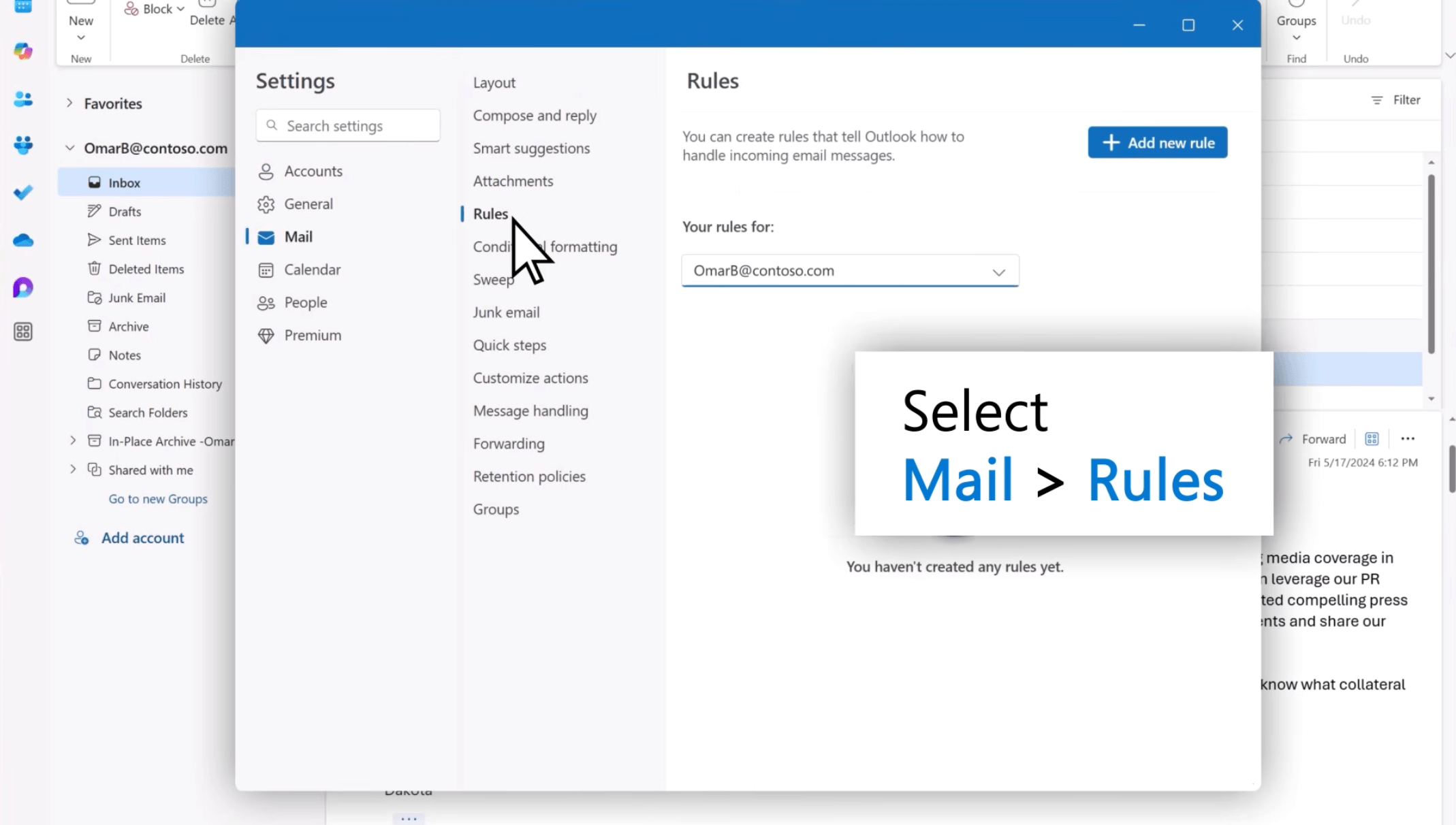
Go to Settings > Mail > Rules and read every rule on the list. Look for:
In classic Outlook, you'll find the same list under Home > Rules > Manage Rules & Alerts.
Go to Settings > Mail > Forwarding. If forwarding is on and you didn't set it up, or it points to an address you don't recognize, treat it as a red flag. Unlike a rule, this setting forwards everything.
Watch for small, strange patterns: replies you were expecting that never arrive, messages already marked as read when you open them, contacts asking about emails you never sent, or items in Sent Items or Deleted Items you don't recognize. Each one can have an innocent explanation. Together, they're worth reporting.
Found something? Don't just delete the rule and move on. Report it to IT or security right away. A malicious rule usually means someone had access to your account, and your security team needs the rule's details to work out what was taken and whether other mailboxes are affected.
Checking mailboxes one at a time doesn't scale. The control that does is the outbound spam policy in Microsoft Defender. Set it once, and automatic forwarding to external addresses is blocked for every mailbox the policy covers, whether the forwarding comes from an inbox rule or a mailbox forwarding setting.
To block external auto-forwarding in Exchange Online:
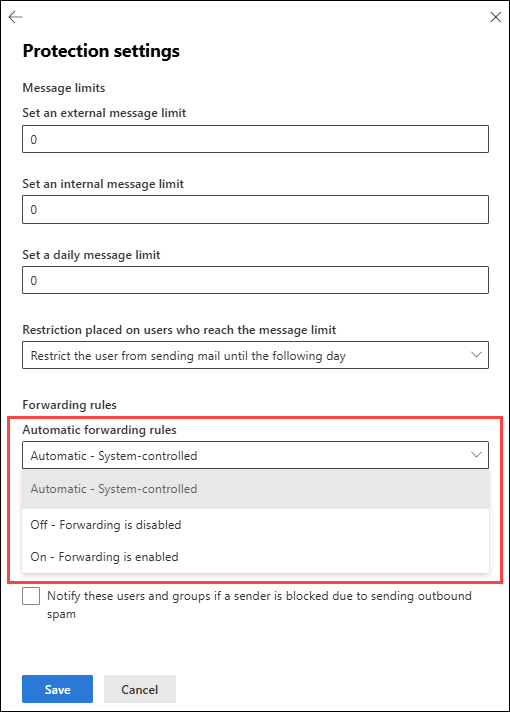
A few things to know before you make the change:
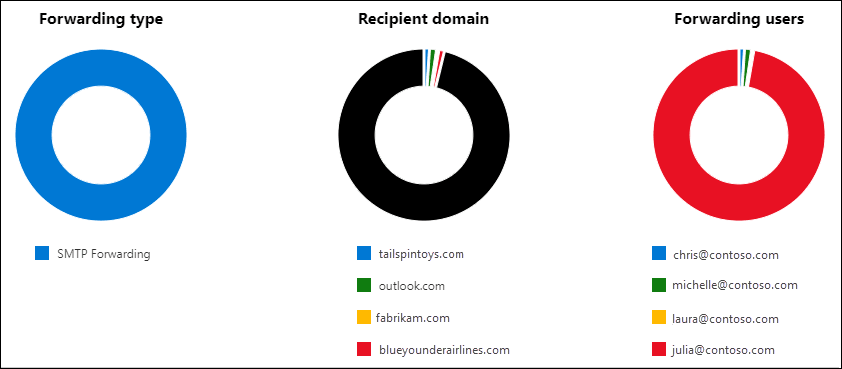
Before you switch it off, find out who's already forwarding. The Auto forwarded messages report in the Exchange admin center shows which users forward email outside the organization, how they do it (inbox rule, mailbox forwarding or mail flow rule) and which external domains receive it. Its insights also flag new forwarding users and new destination domains. Any forwarding nobody can explain is a mailbox to investigate, not just a setting to switch off.
Blocking external forwarding stops the silent copy. It doesn't stop an attacker who is signed in to the mailbox from reading it directly, and it doesn't remove rules that hide or delete messages. Forwarding built with Power Automate also needs its own controls. Treat this setting as one link you remove from the chain, alongside:

Not reliably. The default setting, Automatic - System-controlled, has blocked external forwarding for new tenants since 2021, but some older tenants can still allow it. The safe move is to set the outbound spam policy to Off - Forwarding is disabled explicitly, then confirm the result with the Auto forwarded messages report.
It can stop legitimate forwarding to outside addresses, such as a shared mailbox that forwards to a vendor or someone forwarding work email to a personal account. Review the Auto forwarded messages report first, then allow genuine cases through a separate policy with a named owner.
No. The rule is stored in the mailbox and keeps running after the password changes. Responders need to review and remove inbox rules and mailbox forwarding as a separate step, along with signing the user out of active sessions and checking for other ways back in.
No. It closes the quietest path, but an attacker with mailbox access can still read, download or send email directly. Pair it with phishing-resistant MFA, alerts on new inbox rules and a response plan your team has actually tested.
A malicious inbox rule is rarely the whole attack. It's the step that turns one stolen sign-in into months of silent data theft. Someone still had to get in first, and the settings that let them in are probably still open.
The free Mythos-Ready Microsoft 365 Security Playbook follows that attack from the first click to the last trace and shows where each step could have been stopped. Inside you'll find:
You've just closed one door. Find out how many are still open.
Copilot can surface what people shouldn't see. Three ways we help:
A professional organization built a Purview-based foundation for secure AI adoption with 2toLead.
Read the case study →


Join Our Newsletter