Disable custom connectors in Copilot Studio with one data policy rule. Block unapproved MCP servers and APIs, allow vetted hosts and prove it works.
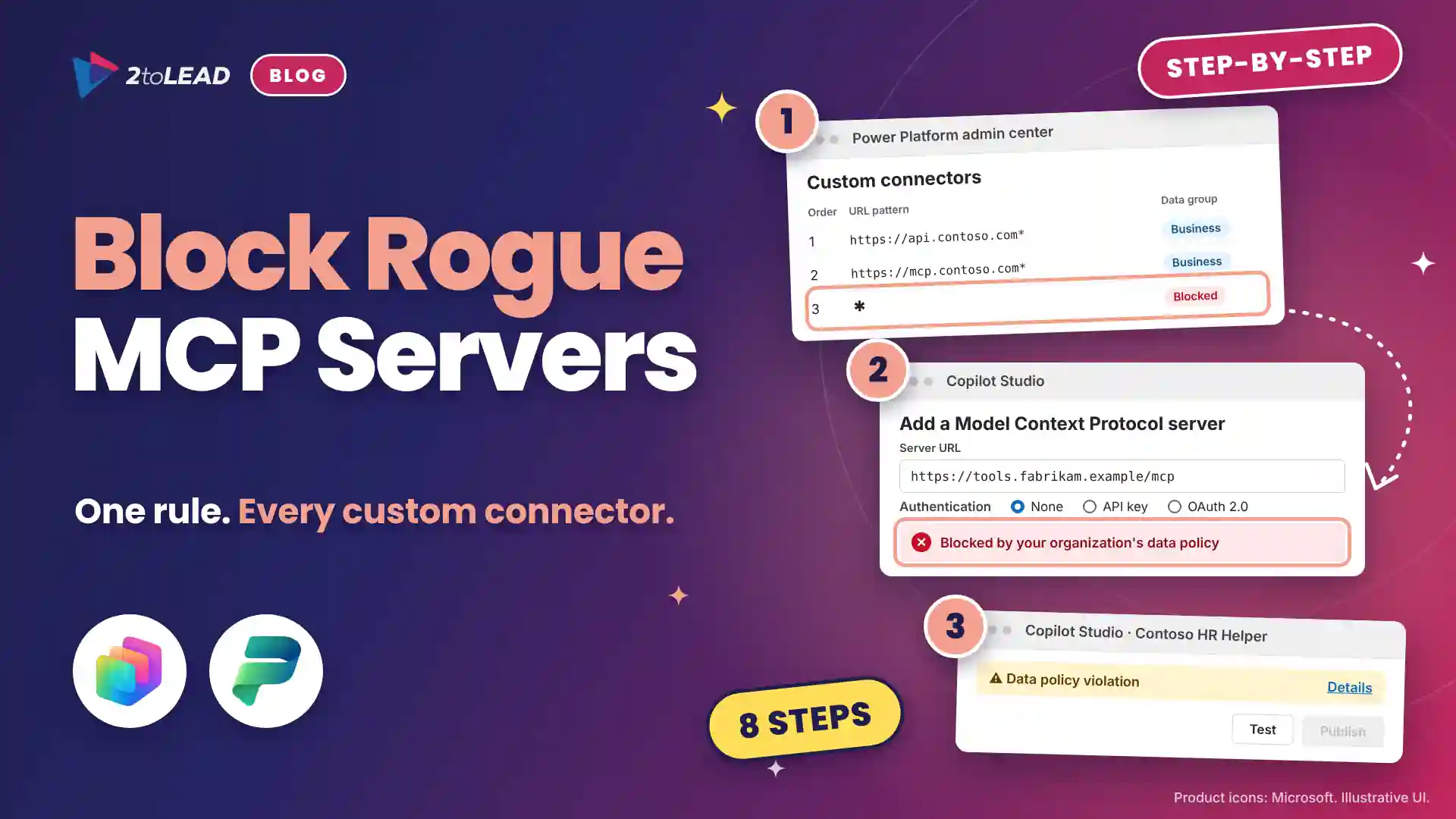
TL;DR: To disable custom connectors in Copilot Studio, edit your tenant-level data policy in the Microsoft Power Platform admin center and set the custom connector * URL pattern to Blocked. Model Context Protocol (MCP) servers connect through the same connectors, so the rule stops unapproved MCP servers too. Then allow vetted hosts, block HTTP and test.
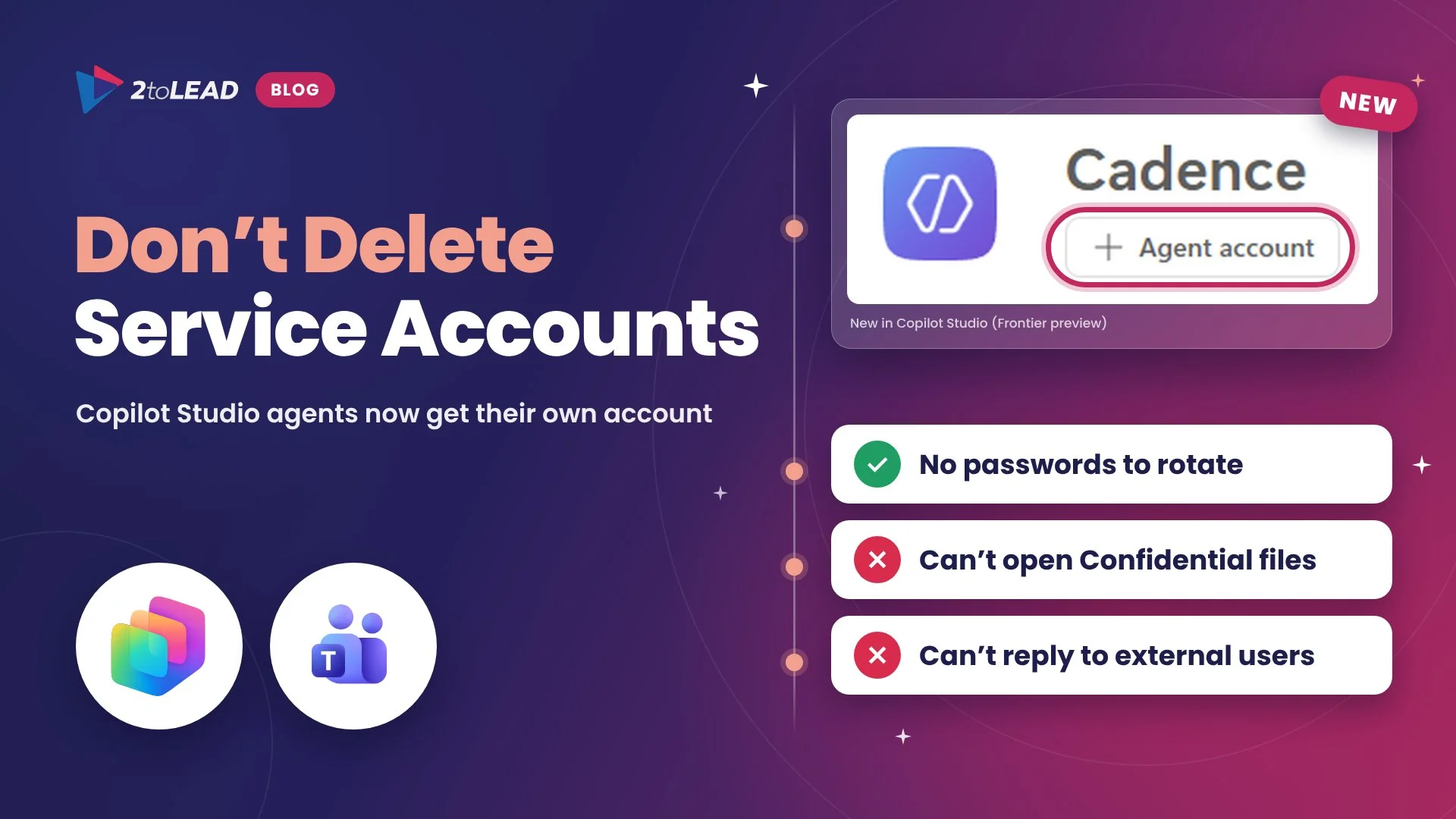
Any maker in Microsoft Copilot Studio can connect an agent to almost any API. On the Tools page, Add a tool > New tool offers Custom connector and Model Context Protocol, and the MCP onboarding wizard asks for a server name, a description and a URL, with authentication preselected as None. If you want to disable custom connectors in Copilot Studio, the control isn't in Copilot Studio. It's in your Power Platform data policy.
A custom connector is a maker-built wrapper around an API, identified by its host URL, that Power Apps, Power Automate and Copilot Studio can call like any other connector. Copilot Studio uses the same plumbing for MCP. Microsoft's documentation says access to MCP servers relies on Power Platform connectors, so a data policy that governs connectors also governs MCP servers and their tools.
One tenant rule closes both doors. Unreviewed connectors are how agent sprawl becomes the new shadow IT.
This guide is for Power Platform administrators, Copilot Studio platform owners and security architects. By the end you will have a tenant rule that blocks every custom connector by default, an allowlist of approved hosts, the HTTP request route closed, a clear message for makers and a test that proves it works.
New to MCP? Start with how the Model Context Protocol works. Then pair this guide with your decisions on Copilot Studio agent accounts versus service accounts, since a connector's sign-in decides whose data an agent reaches.
You need the Power Platform Administrator role, an inventory of existing custom connectors and an owner for approvals.
Swipe horizontally to view each prerequisite and why it matters.
| Prerequisite | What you need | Why it matters |
|---|---|---|
| Admin role | Power Platform Administrator for tenant-level policies. Environment Admin (System Administrator with Dataverse) for environment-level ones. | Only tenant-level policies have the Custom connectors URL pattern page. |
| Licenses | No add-on license for classic data policies. Managed Environments only if advanced connector policies must block connectors classic policies can't. | The core control works on the licenses you have. |
| Tools | Power Platform admin center and the Microsoft.PowerApps.Administration.PowerShell module. | PowerShell lists custom connectors and sets the message makers see. |
| Inventory | Every custom connector and MCP server in use, with host URL and owner. | Agents that use a blocked connector can't be published until the host is approved. |
| Approval path | A named owner and a request form for new APIs. | Makers need a clear yes path, or they look for a way around the block. |
Edit your tenant-level data policy, set the * custom connector pattern to Blocked, allow approved hosts above it and block the HTTP connector. The policy change takes about 30 minutes; in 2toLead's experience the inventory and testing take a day across a few environments.
Get-AdminPowerAppConnector, then open Power Apps > Custom connectors in each environment where agents are built; MCP servers added through the Copilot Studio wizard appear there too. Record each host URL, owner and the agents that use it. Expected result: A list of host URLs to approve or retire before anything is blocked.https://api.contoso.com*, and classify it in the same data group as the connectors it works with, usually Business. Use Order, Move up or Move down so specific patterns sit above broader ones. Expected result: Approved patterns sit above the * rule, so vetted APIs keep working.New-PowerAppDlpErrorSettings (or Set-PowerAppDlpErrorSettings to update it) with your Power Platform team's email address and a link to your request process. The setting applies to every Power Platform app in the tenant. Expected result: Policy errors in Copilot Studio show your admin email and a Learn more link instead of a dead end.For step 1, Agent Inventory V2 in the Copilot Agent Kit helps you find every agent first, and the kit's Power Shield feature gives makers a request workflow for custom connector patterns.
In healthcare, financial services and government, keep any excluded developer environment behind a security group.
Plan URL patterns as a short, ordered allowlist: specific approved hosts first, each in the same data group as the connectors it works with, and * set to Blocked last. Use HTTPS and end each pattern with *.
Use this rule plan as your decision record and give every row an owner.
Swipe horizontally to view each rule, its data group and when to use it.
| Order | URL pattern | Data group | When to use it |
|---|---|---|---|
| 1 | https://api.contoso.com/hr* | Business | A reviewed internal API that agents combine with SharePoint, Dataverse or Microsoft 365 data. |
| 2 | https://mcp.contoso.com* | Business | Your own reviewed MCP server that uses OAuth 2.0, never None for authentication. |
| 3 | https://api.approvedvendor.com* | Non-business | A reviewed public API that never touches business data. |
| Last | * | Blocked | Everything else, including any MCP server a maker adds through the onboarding wizard. |
Before you approve a host, check four things: a named owner, HTTPS only, OAuth 2.0 or API key authentication instead of None, and a data classification that matches the group you chose.
The most common mistake is saving a policy with the * rule still on Ignore, which blocks nothing. Most of the others leave a side route open.
https://*.azurewebsites.net* approves every maker's Azure app. Name the exact host.An MCP server with no authentication is also an easy route for prompt injection against Copilot Studio agents, which is why None should never pass review.
You know the block works when Copilot Studio refuses unapproved connectors, approved hosts still work and the rule order is correct in PowerShell. Check all three right after saving.
Get-PowerAppPolicyUrlPatterns returns your approved patterns in order, with * last as Blocked.Measure it by the review hours it saves and the exposure it removes. Track custom connectors per environment, unapproved hosts, MCP servers without authentication, new requests per quarter and the days it takes to approve one.
Here is a 2toLead illustrative model; swap in your own numbers. Without a block, a 2,000-person healthcare network adds about 30 custom connectors a quarter, 12 of them MCP servers from the wizard. Reviewing each after the fact takes about four hours: 120 hours, or $14,400 at a loaded $120 an hour.
With custom connectors blocked by default, makers request only what they need, say six a quarter at two hours each: 12 hours, or $1,440. After a one-day setup, that returns about 100 hours in the first quarter and more than 400 a year, and the network knows every API its agents can call.
Report approved hosts next to your agent count. When your agent estate doubles while controls stay flat, this number shows the controls kept up.
Every custom connector is a door into your data. Block by default, open on purpose.
Yes, for MCP servers added through the onboarding wizard or built as custom connectors. Microsoft states that MCP servers in Copilot Studio rely on Power Platform connectors, so a policy that blocks those connectors blocks the server and its tools. Servers registered in Agent 365 can also be blocked under Agents > Tools in the Microsoft 365 admin center.
Copilot Studio enforces data policies in real time. Makers see an error banner, Publish becomes unavailable, and users can see errors until the tool is removed or its host is approved. Inventory first and allow the hosts you need before you save.
No. The custom connector rule only matches custom connectors by host URL. Prebuilt and certified connectors, including Microsoft's MCP connectors, are governed on the Prebuilt connectors page or with advanced connector policies, which can block an entire MCP server.
Not yet. Advanced connector policies currently cover certified connectors only, and Microsoft lists custom connector and HTTP support as planned. Keep your classic data policy rule in place and run both in the default mixed mode, where the most restrictive setting wins.
2toLead helps organizations in healthcare, financial services, education, nonprofit and government turn Copilot Studio into a governed, measurable platform. In a fixed-scope, two-week Connector Guardrails Sprint, our Microsoft MVP team will:
For the full rule syntax, read Microsoft's guide to data policies for custom connectors.
For the wider governance picture, our October 2026 Secure AI and Governance Newsletter covers the other controls worth turning on this quarter.
Find more practical guidance on the 2toLead Insights hub, or book a Connector Guardrails Sprint.
No hype. Just practical, governed AI that actually gets adopted.
Copilot can surface what people shouldn't see. Three ways we help:
A professional organization built a Purview-based foundation for secure AI adoption with 2toLead.
Read the case study →Agent ideas everywhere, nothing in production? Three ways we help:
A regulated health system turned its legal contract playbook into a governed Copilot agent that reviews real contracts every day.
Read the case study →


Join Our Newsletter