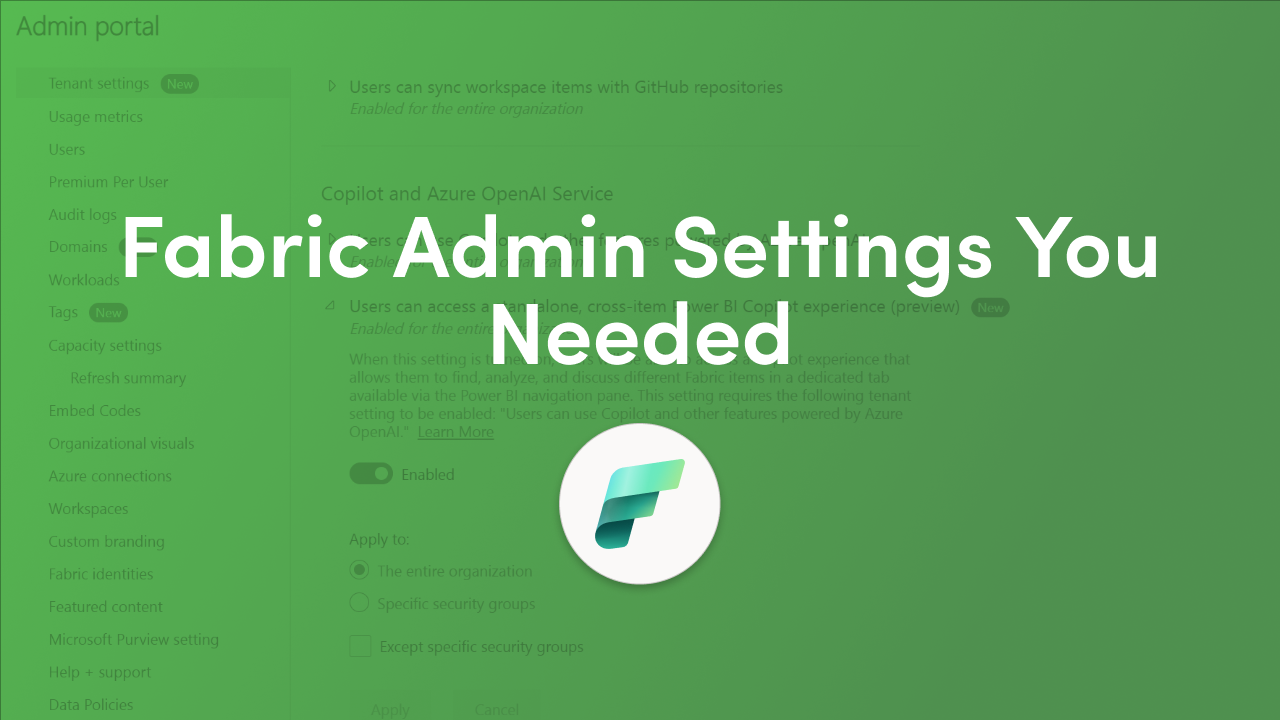
Microsoft Fabric has rolled out significant new Admin Settings under Tenant Settings in the Admin portal delivering the governance controls IT leaders have been waiting for. These updates give administrators more granular control over Copilot experiences across the Power BI ecosystem, representing a major step toward smarter governance and smoother enterprise rollout.
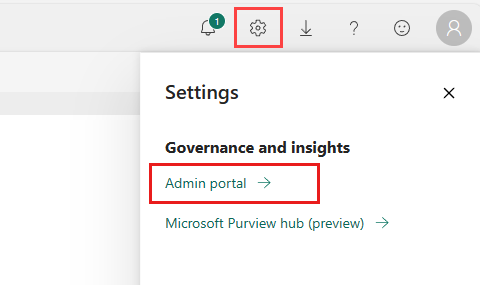
Here's what's new:
These additions address critical pain points around AI governance, content curation, and deployment friction that IT administrators and governance professionals have been navigating. Let's explore what these updates mean for your organization.
The rapid rollout of AI-powered features has created a significant governance challenge for organizations. Features are often enabled before corresponding controls are available, leaving administrators struggling to manage where and how Copilot appears. The new tenant settings directly address this gap.
Tenant settings enable fine-grained control over the features that are made available to your organization. If you have concerns around sensitive data, some of our features might not be right for your organization, or you might only want a particular feature to be available to a specific group.
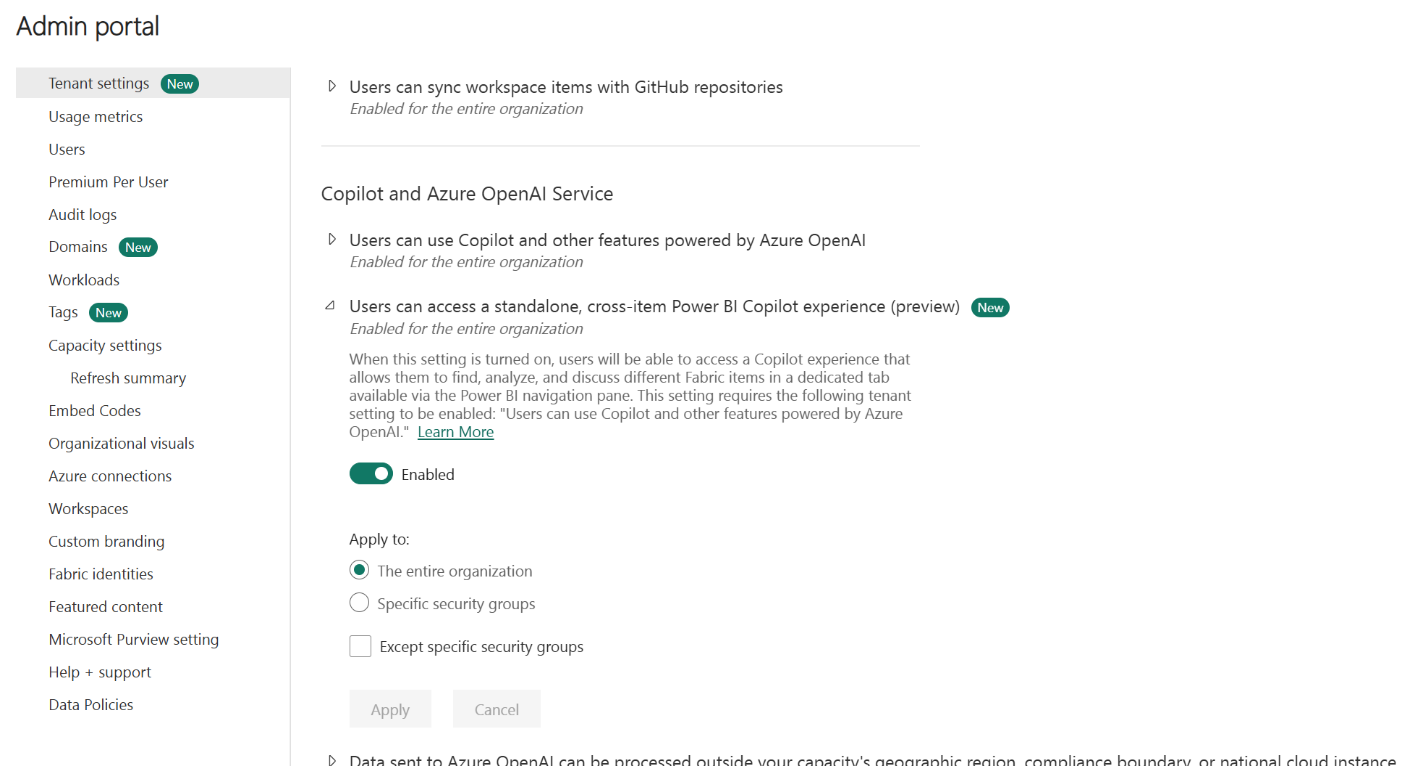
The ability to control the standalone, cross-item Power BI Copilot experience gives administrators the power to decide who can access this preview feature and under what conditions. This is crucial for organizations that need to validate AI capabilities in controlled environments before broader deployment.
Many of the settings can have one of three states: Disabled for the entire organization (no one can use this feature); Enabled for the entire organization (everyone can use this feature); or Enabled for a subset of the organization (specific security groups are allowed to use this feature).
This flexibility means you can enable the cross-item Copilot experience for your data analytics team while keeping it disabled for other departments until you've established proper training and guidelines.
One of the most impactful new settings is the ability to only show approved items in the standalone Copilot in Power BI experience. This addresses a fundamental concern for data governance professionals: ensuring that AI-generated insights draw from trusted, validated data sources.
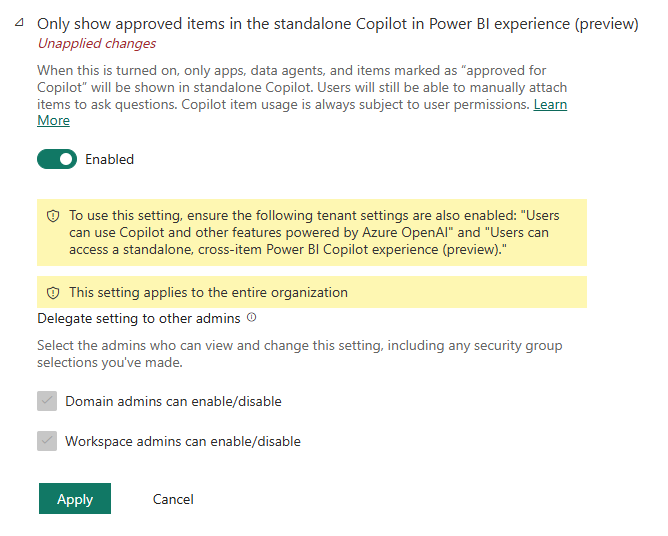
Tenant settings that control the availability of features in the Power BI user interface can help to establish governance policies. By restricting Copilot to approved items only, organizations can:
AI adoption is reshaping how organizations work, but success requires more than just deploying new tools. IT leaders must navigate three interlinked waves of change velocity, variety, and volume to ensure scalable, sustainable success. The approved items control directly supports this by giving IT the ability to manage variety and prevent governance gaps as AI capabilities expand.
This setting is particularly valuable for organizations dealing with sensitive data across finance, healthcare, and legal departments where the provenance of AI-generated insights matters significantly.
The new setting to Install Power BI app for Microsoft Teams automatically removes a significant friction point in enterprise BI adoption. Previously, users needed to manually discover and install the Power BI app, creating inconsistent experiences and slowing adoption momentum.
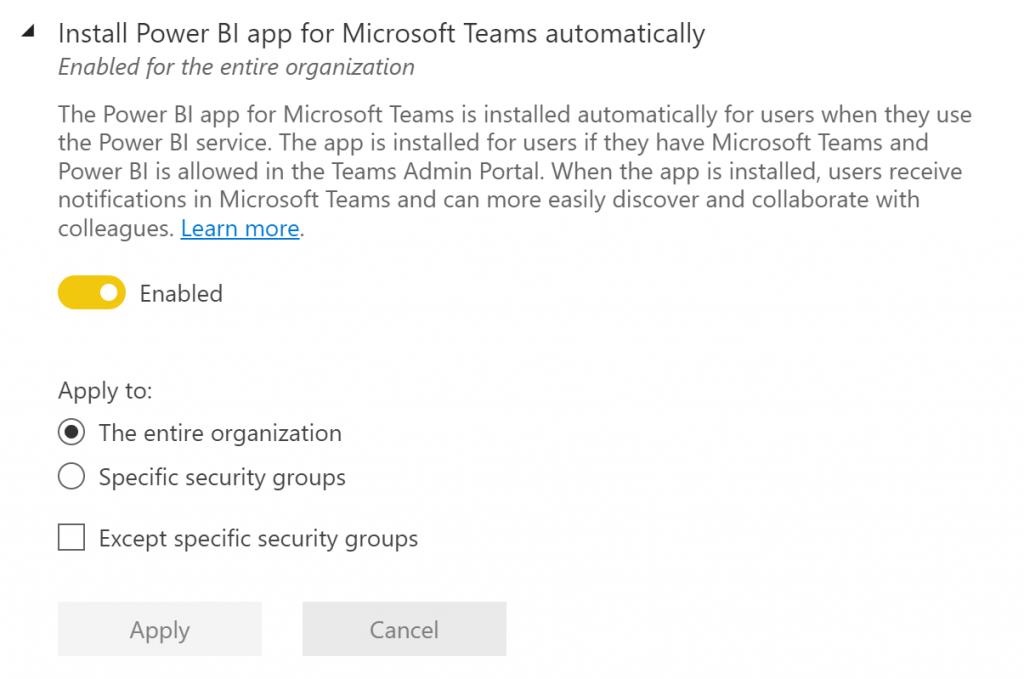
Automatic installation means:
Organizations are pressed to move from piloting to full-scale deployment in months rather than years. This demands proactive IT strategies to accelerate scaling and value realization. Organizations that delay risk missed ROI, security lapses, and falling behind competitors.
By automating the Teams integration, Microsoft is helping IT leaders meet this acceleration demand. The setting still respects your broader app governance policies, allowing you to target specific user groups for automatic installation rather than forcing a blanket deployment.
You need tenant level admin permissions (Fabric Administrator in Azure). Workspace level permissions are not enough to configure these settings. Before implementing these new controls, ensure the right team members have appropriate administrative access.
Step-by-step implementation approach:
IT must partner closely with business units to anticipate challenges and drive early adoption. Accelerate AI Adoption & ROI: Move quickly from planning to implementation by investing in training, robust governance frameworks, and tools that speed up the journey from AI readiness to AI value realization.
These new Microsoft Fabric tenant settings represent a meaningful maturation of enterprise AI governance capabilities. The combination of Copilot access controls, content curation options, and streamlined deployment features gives IT leaders the tools needed to balance innovation velocity with responsible governance.
Secure, compliant adoption requires governance across Microsoft 365, Intune, and the Power Platform. These Fabric updates complement your broader Microsoft governance strategy, particularly the Copilot Control System (CCS), available via the Adoption Hub, which centralizes key Copilot controls: Manage which users and apps have access to Copilot, configure default pinning and app visibility, control introduction of new Copilot experiences, and review usage analytics and adoption metrics.
Next Steps:
The journey from AI readiness to AI value realization is accelerating. These new admin controls ensure your organization can move fast without breaking governance.


Join Our Newsletter