Microsoft is enabling a browser‑first path for many BYOD scenarios on Windows: apply Intune App Protection Policies (Windows MAM) to the work profile in Microsoft Edge, and gate access with Conditional Access → Require app protection policy (Windows). Users reach Microsoft 365 and SaaS apps from personal Windows devices without full device enrollment, while policy controls follow the work identity in Edge.
For the last decade, if a contractor or employee wanted to use their personal laptop for work, IT had two heavy-handed options: force them to enroll the device in Intune (which users hate due to privacy concerns) or force them into a slow, expensive Citrix/AVD session (which users hate due to latency).
This new feature creates a third path: The Browser as the Container.
Supported on Windows 11 and Windows 10, version 20H2+ (with KB5031445) when Conditional Access requires an app protection policy for Windows.
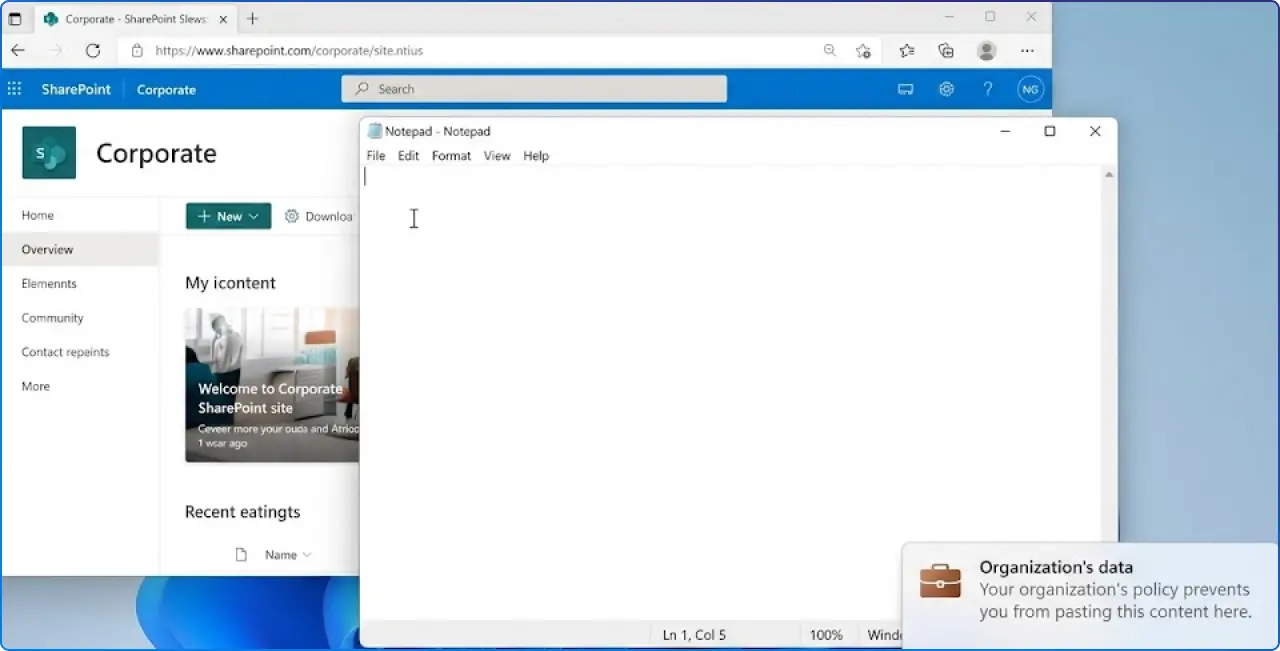
Windows Mobile Application Management (MAM) applies Intune App Protection Policies to Microsoft Edge on personal Windows devices. With Conditional Access → Require app protection policy, users can reach Microsoft 365 and SaaS, while copy/paste, downloads, printing, and data transfer are restricted to approved paths (e.g., OneDrive for Business). Works on Windows 11 and Windows 10 20H2+ (KB5031445) when users sign into a work profile in Edge.
Microsoft is bringing the "App Protection Policies" (MAM) we have used on iOS and Android for years to the Windows desktop.
Windows MAM applies Intune App Protection Policies to Microsoft Edge on personal (unmanaged) Windows devices. Policies bind to the work identity in Edge, not the device.
This allows you to enforce data leakage controls, like blocking copy/paste, preventing downloads, or disabling printing, directly within the Microsoft Edge browser on a personal, unmanaged Windows PC. The controls are applied to the identity, not the device.
How it works structurally:
Implementing this requires a combination of Conditional Access (CA) and Intune App Protection. You are essentially telling Entra ID: "If the device is unmanaged, do not allow access unless the user is in a protected browser."
Note: When Grant is set to Require app protection policy (Windows), devices must meet the supported OS criteria and users must sign into Edge with a work profile for policies to apply.
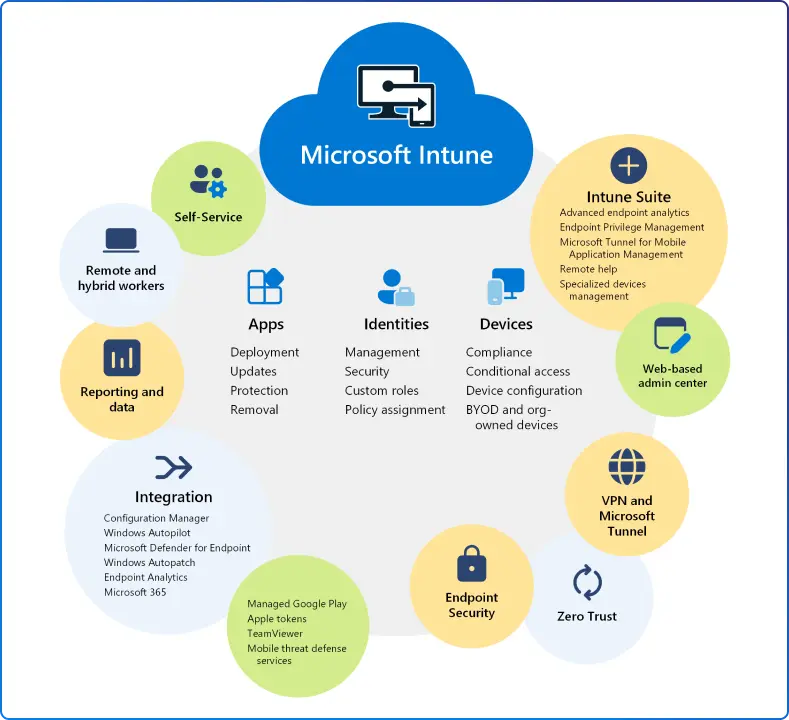
This feature moves the security perimeter from the network/device level up to the application layer.
1. Death of the "BYOD Tax" Managing personal devices via full MDM (Intune enrollment) is a support nightmare. It generates tickets about privacy, slows down onboarding, and often requires legal waivers. This approach requires zero device enrollment. The user just downloads Edge, signs in, and works.
2. Cost Reduction vs. VDI Virtual Desktops (AVD/Windows 365) are powerful but expensive, often costing $30-$100 per user/month in compute and licensing. If a user only needs a browser to access O365 and web apps, putting them in a VDI is overkill. This Edge feature moves that workload to the local endpoint (free) while maintaining the data boundary.
3. User Privacy The "Work" and "Personal" profiles in Edge are completely siloed. IT can wipe the Work profile data remotely, but they cannot see the user's personal browsing history, bookmarks, or files in their personal profile. This separation builds trust and increases adoption.
To execute this rollout, you must verify that the following configurations are present in the tenant.
Q1. What is Windows MAM for Microsoft Edge?
Windows MAM applies Intune App Protection Policies to the Edge work profile on personal Windows devices, so controls follow the user’s work identity, not the device.
Q2. Which OS versions are supported?
Windows 11 and Windows 10, version 20H2+ (with KB5031445) when Conditional Access requires an app protection policy (Windows).
Q3. How do I enable a “protected browser only” experience?
Create Conditional Access for Microsoft 365 and set Grant → Require app protection policy (Windows), then assign a Windows App Protection Policy in Intune to the target users.
Q4. Can I block downloads or allow only OneDrive/SharePoint?
Yes, configure Windows MAM data‑transfer rules and “Allow user to save copies to selected services” to block local saves or allow only approved services (e.g., OneDrive for Business).
Q5. How does copy/paste blocking really work?
Use Restrict cut, copy, and paste (Windows APP). Allow within managed contexts; block to unmanaged apps. See Microsoft’s scenarios/troubleshooting for exact behaviors.
Q6. Does this replace VDI/Windows 365?
For browser‑only work: often yes. For full desktop/legacy apps: VDI or Windows 365 still apply, pick the lightest tool that meets the requirement.
Q7. Is watermarking available?
Watermark protection in Edge is rolling out via the Edge management service; treat as preview/tenant‑dependent until available in your environment.


Join Our Newsletter