As organizations scale their use of Microsoft Power Pages for customer-facing websites, one critical challenge emerges:
How do you maintain security and compliance when multiple makers are building sites with various authentication requirements?
With multiple makers managing various websites in a tenant, admins need to enforce authentication and restrict external user access effectively.
The new external authentication provider governance feature in the Power Platform admin center addresses this challenge head-on, giving administrators unprecedented control over identity management across their Power Pages ecosystem.
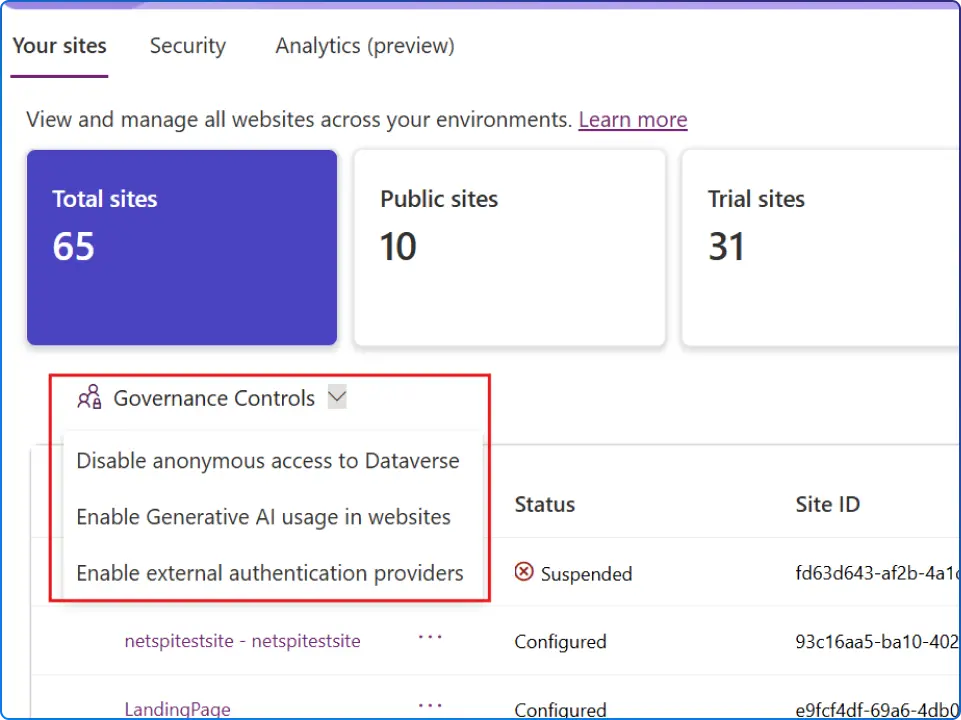
Power Platform is democratized, designed to empower business users, or "citizen developers", to build apps and automate workflows without traditional developer resources. However, unrestricted usage can introduce risks such as shadow IT, data leakage, policy violations, uncontrolled sprawl of environments and apps, and compliance breaches.
For Power Pages specifically, the authentication landscape presents unique governance challenges. Authentication is a foundational element of any website, shaping how users securely access data and interact with business processes. When makers can freely configure any external identity provider (IDP), from social logins to enterprise OAuth providers, without oversight, organizations risk:
This feature gives you precise control over which external identity providers can be used on your Power Pages sites. It helps you enforce security, compliance, and privacy standards while maintaining flexibility for your team.
The architecture of this governance feature strikes a balance between centralized control and operational flexibility.
Power Pages now lets you manage external authentication providers with environment-level governance controls and optional site-level exceptions. You can centrally enforce which identity providers (IDPs) are allowed across all sites in an environment, while still enabling site-specific flexibility when needed.
With this setting, administrators can manage external authentication at varying levels:
This tiered approach ensures that administrators can implement governance progressively, starting with broad policies and refining them as organizational needs evolve. For example, a financial services company might disable external authentication by default but enable it specifically for their customer portal while keeping internal HR sites locked to Microsoft Entra ID authentication only.
Admins can centrally enforce which identity providers are allowed across all sites in an environment, while still enabling site-specific flexibility. Only the allowed identity providers will be displayed to users when setting up authentication, ensuring consistent governance and alignment with enterprise security policies.
Setting up external authentication governance is straightforward once you know where to look.
To enable this feature, go to the Power Platform admin center. Navigate to Manage > Power Pages > Governance settings > Authentication providers. Here, you can configure allowed or restricted external IDPs, enable site-level overrides, and manage exceptions for specific sites.
To benefit from these insights, log into your Power Platform Admin Center and navigate to:
When configuring your governance settings, consider these identity and access management principles:
Managing access to sensitive information and resources is critical for IT admins and Chief Information Security Officers (CISOs) across industries. Ensuring least privilege access is essential for maintaining strong security.
Administrative identities pose significant security risks because their tasks require privileged access to many systems and applications. Compromise or misuse can harm your business and its information systems. Apply these strategies to your authentication governance:
Understanding how this governance affects different user groups helps you communicate changes effectively and minimize disruption.
Makers will only see and select from the approved IDPs when setting up authentication, ensuring consistent governance and alignment with enterprise security policies.
Once an admin configures the governance setting, makers will see external authentication providers as "not available" in their site settings in studio. They will not be able to enable or configure them, and any previously configured external authentication providers will no longer be honored.
For existing sites that had external authentication configured, makers will see a banner message indicating that a governance setting has been applied. This transparency helps makers understand why certain options are unavailable and whom to contact for exceptions.
When users try to access a Power Pages website, they will be required to sign in with Microsoft Entra ID (formerly Azure AD). If external authentication providers are disabled for the site, users outside the organization will no longer be able to log in.
This is a critical consideration for customer-facing sites. Ensure you:
External authentication governance shouldn't exist in isolation, it's one component of a comprehensive Power Platform security posture.
To make sure your business information is properly protected, Power Pages has a robust security model that encompasses the following key components: Site visibility, Authenticated users, Web roles, Table permissions, Page permissions, HTTPS Headers, and Security Scan.
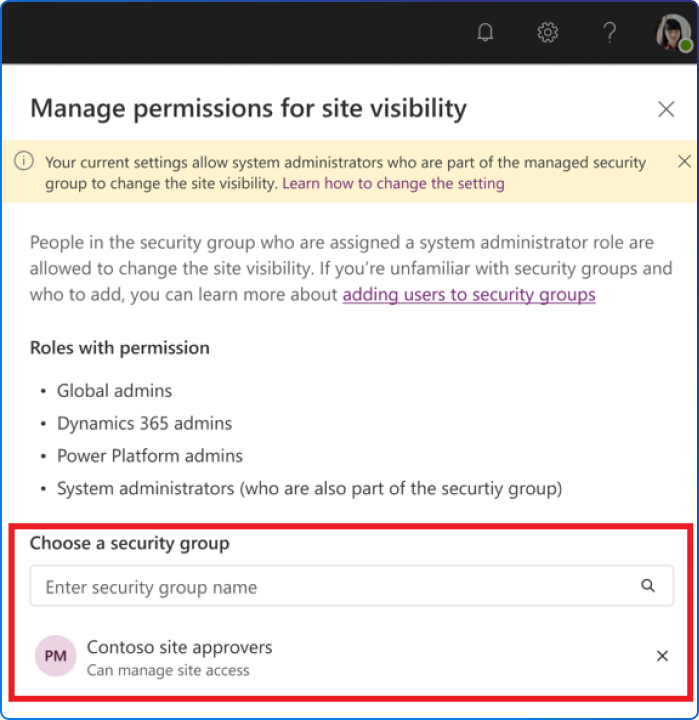
The site visibility setting controls who can access the sites you create in Power Pages. By default, all Power Pages sites are available to users who are internal to your organization. The extra layer of security that Microsoft Entra authentication provides helps to prevent accidental leaks of partially developed website data and designs.
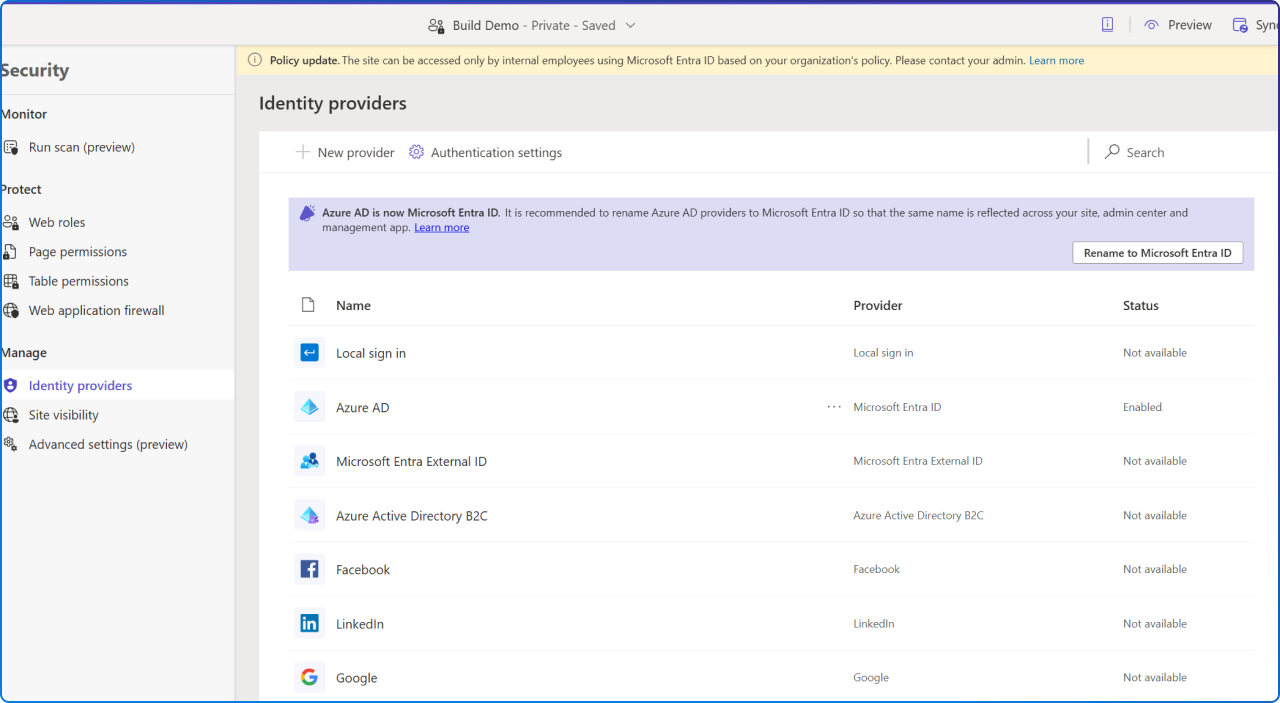
Azure Active Directory (Azure AD) is Microsoft's cloud-based identity and access management solution. By integrating Azure AD with Power Pages, you can ensure that your website benefits from enterprise-grade authentication mechanisms including:
Single Sign-On (SSO), which means users can log in once and access multiple applications without needing to authenticate again.
Multi-Factor Authentication (MFA) ensures that even if a user's password is compromised, additional verification is required to access sensitive resources. Conditional Access Policies allow you to create policies that restrict access based on location, device, user group, or risk level.
Power Platform integrates with Microsoft Entra ID for identity and access management, empowering admins to securely manage users and their interactions with Power Platform resources.
Governance ensures the platform can scale safely by balancing innovation with oversight. A good governance model addresses who can build, what they can build, where they can build it, and how it's monitored.
This governance control helps strengthen security, enforce compliance, and ensure that only authorized users access your Power Pages websites.
Action Items:
By implementing external authentication provider governance, you transform a potential security vulnerability into a controlled, auditable, and compliant authentication ecosystem, without sacrificing the agility that makes Power Pages valuable to your organization.


Join Our Newsletter