Picture this: a team member accidentally overwrites a critical project proposal in SharePoint. It's one file. But under the old approach, your IT admin had to restore the entire SharePoint site, rolling back hundreds of other files, disrupting active collaboration, and triggering a cascade of questions from the team wondering why their work disappeared.
Sound familiar? That all-or-nothing approach to data recovery has been one of the most common pain points for organizations using Microsoft 365 Backup. The good news? Microsoft is fixing it and it's a bigger deal than it might sound.
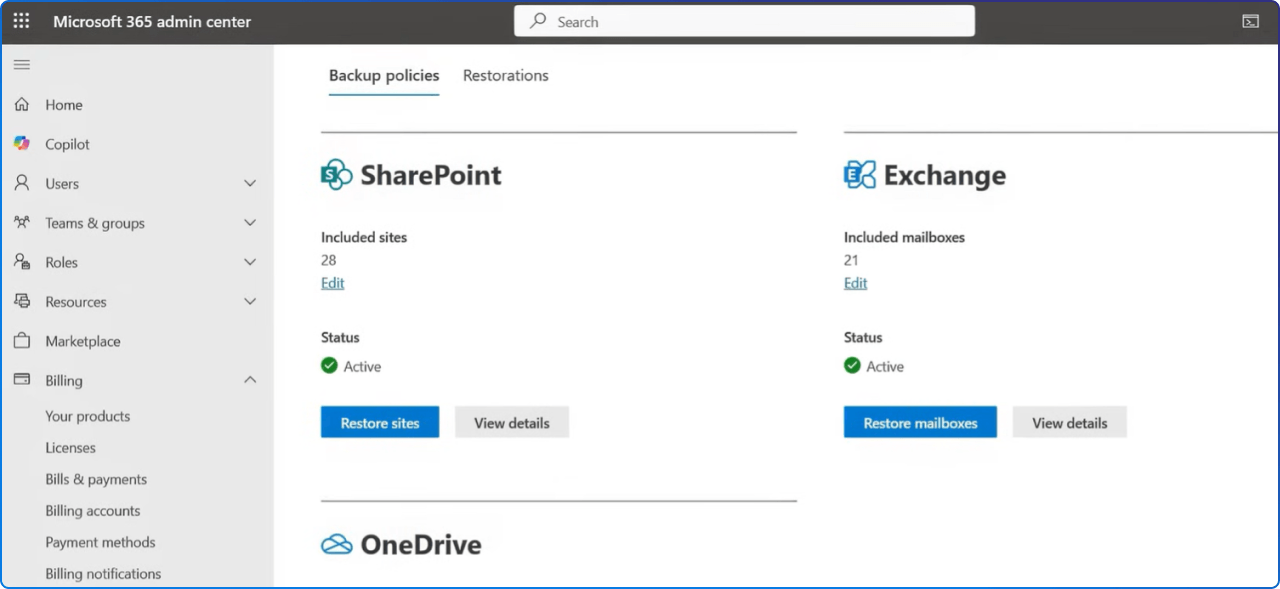
Microsoft is introducing granular restore capabilities in Microsoft 365 Backup, allowing administrators to browse, search, and restore individual files or folders from restore points for protected SharePoint sites and OneDrive accounts
In plain terms: your admins no longer have to choose between "restore everything" or "restore nothing." They can now drill down, find exactly the file or folder that was lost or corrupted, and bring it back cleanly, quickly, and without touching anything else.
Granular restore is now generally available for SharePoint sites and accounts. Beyond full site/account restores, Microsoft 365 Backup admins can browse and search restore points to recover specific files and folders.
This is a meaningful shift for organizations that rely on SharePoint and OneDrive as their primary collaboration platforms. Less disruption. Faster recovery. Happier teams.
Here's the timeline you need to know:
(Microsoft Roadmap ID: 464991)
If you have Microsoft 365 Backup enabled today, this will be available to your environment automatically within these windows, no special action required to receive the feature.
The granular restore experience lives right inside the Microsoft 365 Admin Center, under Settings → Microsoft 365 Backup → Restorations. Here's what the flow looks like in practice:
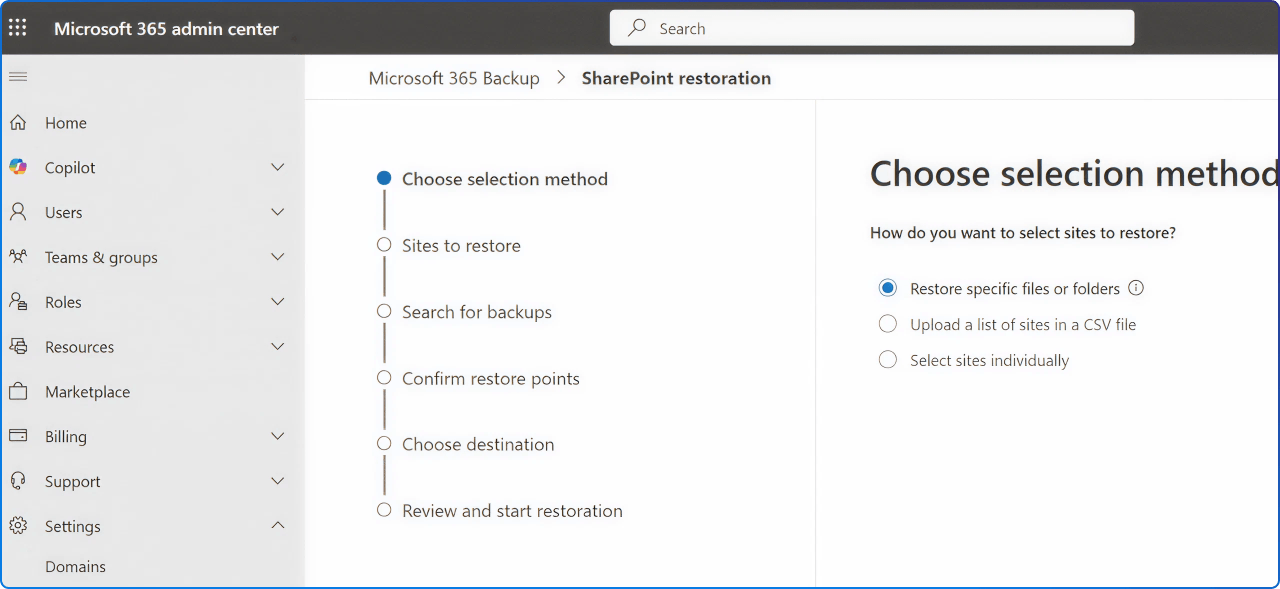
In the Microsoft 365 admin center, on the Microsoft 365 Backup page, in the SharePoint section, select Restore.
In this flow, the Restore specific files or folders option gives Microsoft 365 Backup admins the capability to restore a subset of the site's files and folders from a specific restore point.
Step by step:
The same experience is available for OneDrive accounts, following an identical flow.
Pro tip: You can only restore files and folders selected from a single folder in the hierarchy. Browsing to other folders will clear your selected items. Plan your selection before you start clicking!
Speed matters when content is missing and a team is waiting. Here's what Microsoft's performance data shows:
Single or subsite file restore needed: Use the granular folder/file restore option. These restores should take only a couple of minutes
For context, compare that to a full SharePoint site restore, which even with an express restore point, can take anywhere from 10 to 120 minutes for smaller sites. For a single file? You're talking minutes, not hours.
The restore point frequency, also known as the recovery point objective (RPO), defines the maximum amount of time during which data is lost after an attack. For file and folder restore in SharePoint and OneDrive, the RPO is daily for the most recent 14 days, and one week for content going back up to 365 days.
This means you can recover files lost up to a year ago, a powerful safety net for any organization.
This is an important detail for IT leaders and admins to internalize: To use this feature, users must be assigned the SharePoint Backup Admin role.
Even if someone holds the Global Administrator role, the granular restore option will be disabled unless the SharePoint Backup Admin role is explicitly assigned. This is by design, it follows the principle of least privilege, limiting powerful recovery operations to those specifically authorized to perform them.
There is also no direct impact to end users. Restore operations remain admin-initiated; your team doesn't need to learn anything new.
One concern that often comes up: What happens to files that are currently open or being edited when a restore runs?
OneDrive accounts and SharePoint sites being restored to a prior point in time aren't locked in a read-only state. Therefore, users might not realize their current edits will be imminently rolled back and lost.
This is worth communicating to your teams and building into your IT runbooks. Before initiating a restore, especially one affecting shared content, it's good practice to give users a heads-up.
The great news: no technical action is required to receive this feature. It will appear in your tenant automatically as the rollout progresses.
That said, here's a practical preparation checklist for IT and operations leaders:
Microsoft 365 Backup delivers business continuity peace of mind by providing performance and reliable restore confidence. What really matters isn't solely the backup, but the ability to restore your data to a healthy state quickly when you need to do so.
Granular restore takes that promise further. It puts precision recovery tools in the hands of your administrators, making recovery faster, less disruptive, and more aligned with how modern teams actually work.
Whether it's one deleted file or an entire project folder that got overwritten, you now have the tools to respond with confidence. That's what a modern, resilient digital workplace looks like.
Whether you're just getting started with Microsoft 365 Backup or looking to optimize your existing protection policies, 2toLead can help you build a recovery-ready workplace.


Join Our Newsletter